> ## Documentation Index
> Fetch the complete documentation index at: https://docs.runway.com/llms.txt
> Use this file to discover all available pages before exploring further.
# Details pane
> The driver details pane gives a comprehensive overview and editing options for your drivers.
## How to access the details pane
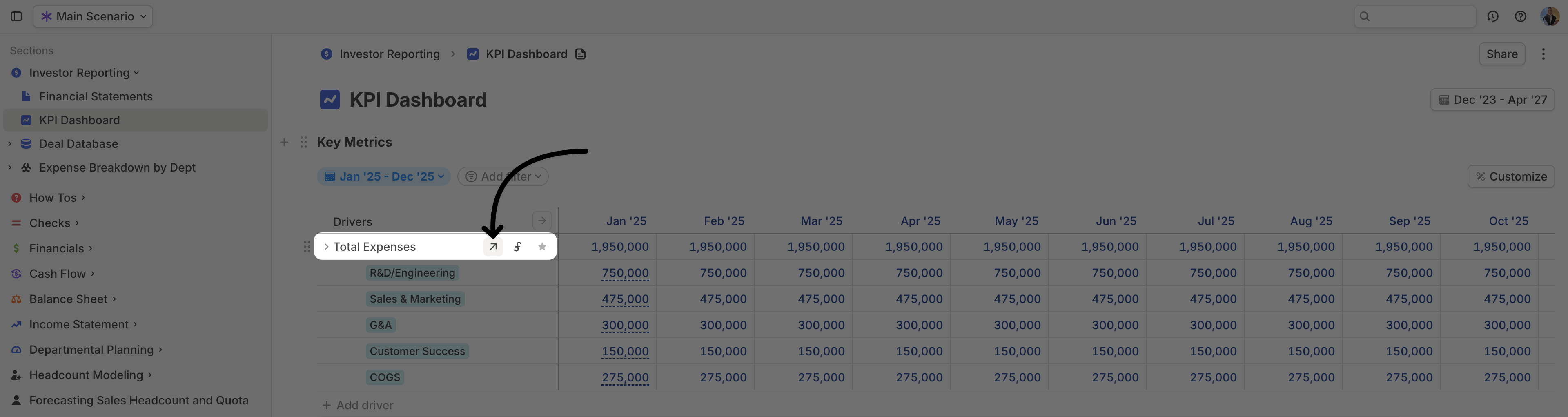
* Click the **↗️ arrow** on any driver row.
* Use the shortcut `Cmd (Ctrl)` + `Shift` + `Enter` while a driver is selected.
 This pane is a really handy surface to dive deep into a driver and how it fits into your model. It is especially useful for:
* Viewing and editing all driver settings in one place.
* Exploring the inputs that contribute to a driver’s values to troubleshoot discrepancies or errors.
## What's inside the driver details pane?
This pane is a really handy surface to dive deep into a driver and how it fits into your model. It is especially useful for:
* Viewing and editing all driver settings in one place.
* Exploring the inputs that contribute to a driver’s values to troubleshoot discrepancies or errors.
## What's inside the driver details pane?
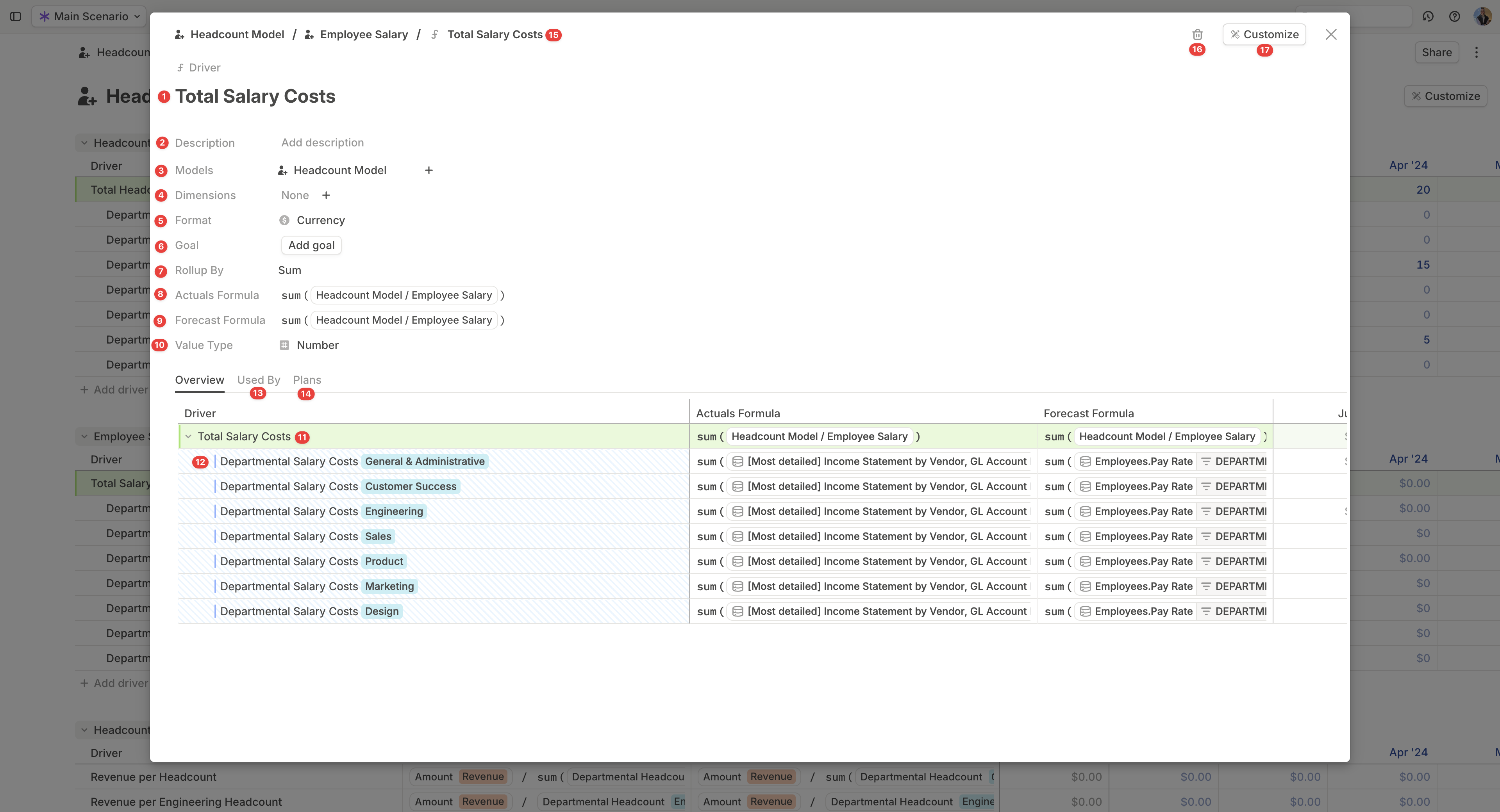 1. **Name** – The driver’s name.
2. **Description** – Context or notes about the driver.
3. **Models** – Lists all pages where the driver is used.
4. **Dimensions** – Explains how the driver is segmented. [Learn more about dimensions](/concepts/dimensions/dimensions-basics).
5. [**Format**](https://docs.runway.com/concepts/drivers/driver-formatting) – Adjusts display settings for numeric drivers.
6. **Goal** – Assign a target value to the driver.
* The target appears as a goal line when plotted on a chart.
* Used in scenario comparisons or BvA (Budget vs. Actuals) to determine whether values are displayed as red or green.
* By default, higher values are considered *better*.
7. **Rollup by** – Specifies how the driver's values aggregate when viewing time periods longer than one month, such as quarterly, year-to-date, or annual (e.g. sum, first, last).
8. [**Actuals formula**](https://docs.runway.com/concepts/drivers/drivers-basics#driver-formulas) – Expanded space for editing the driver’s actuals formula.
9. [**Forecast formula**](https://docs.runway.com/concepts/drivers/drivers-basics#driver-formulas) – Expanded space for editing the driver’s forecast formula.
10. [**Driver type**](https://docs.runway.com/concepts/drivers/drivers-basics#driver-types) – Clearly indicates whether the driver stores **Numbers**, **Dates**, or **Attributes**.
11. **Driver timeseries** – A dedicated table displaying the driver’s values over time. The columns are controlled by settings under **Customize**.
12. [**Drill-in**](https://docs.runway.com/concepts/drivers/drill-ins) – Click the caret to show all inputs contributing to this driver (i.e., referenced in its formula).
13. **Used by** – Lists all other drivers that reference this driver in their formulas.
14. [**Plans**](https://docs.runway.com/concepts/plans) – Displays any Plans applied to this driver.
15. **Breadcrumbs** – Shows where the driver is located in your model.
16. **Delete** – Click the **trash can** icon to delete the driver.
17. **Customize menu** – Adjusts which columns and time ranges are displayed in the driver timeseries table.
1. **Name** – The driver’s name.
2. **Description** – Context or notes about the driver.
3. **Models** – Lists all pages where the driver is used.
4. **Dimensions** – Explains how the driver is segmented. [Learn more about dimensions](/concepts/dimensions/dimensions-basics).
5. [**Format**](https://docs.runway.com/concepts/drivers/driver-formatting) – Adjusts display settings for numeric drivers.
6. **Goal** – Assign a target value to the driver.
* The target appears as a goal line when plotted on a chart.
* Used in scenario comparisons or BvA (Budget vs. Actuals) to determine whether values are displayed as red or green.
* By default, higher values are considered *better*.
7. **Rollup by** – Specifies how the driver's values aggregate when viewing time periods longer than one month, such as quarterly, year-to-date, or annual (e.g. sum, first, last).
8. [**Actuals formula**](https://docs.runway.com/concepts/drivers/drivers-basics#driver-formulas) – Expanded space for editing the driver’s actuals formula.
9. [**Forecast formula**](https://docs.runway.com/concepts/drivers/drivers-basics#driver-formulas) – Expanded space for editing the driver’s forecast formula.
10. [**Driver type**](https://docs.runway.com/concepts/drivers/drivers-basics#driver-types) – Clearly indicates whether the driver stores **Numbers**, **Dates**, or **Attributes**.
11. **Driver timeseries** – A dedicated table displaying the driver’s values over time. The columns are controlled by settings under **Customize**.
12. [**Drill-in**](https://docs.runway.com/concepts/drivers/drill-ins) – Click the caret to show all inputs contributing to this driver (i.e., referenced in its formula).
13. **Used by** – Lists all other drivers that reference this driver in their formulas.
14. [**Plans**](https://docs.runway.com/concepts/plans) – Displays any Plans applied to this driver.
15. **Breadcrumbs** – Shows where the driver is located in your model.
16. **Delete** – Click the **trash can** icon to delete the driver.
17. **Customize menu** – Adjusts which columns and time ranges are displayed in the driver timeseries table.