> ## Documentation Index
> Fetch the complete documentation index at: https://docs.runway.com/llms.txt
> Use this file to discover all available pages before exploring further.
# Plans
> Plans connect strategic initiatives to model changes, so you can see why a value changed and what business action caused the impact.
Plans tag model changes to initiatives. Use them when a hardcoded adjustment, headcount change, or timing shift should stay connected to the business reason behind it.
## Modifying forecasts and tagging plans
You can tag changes to time series values in a driver table, database, or driver detail view. This is useful when a forecast formula is mostly right, but a specific initiative changes one or more months.
Select a value after your [last close](/concepts/last-close).
Edit the cell directly. You can replace the forecasted value, clear it, or use `+` or `-` to add an adjustment on top of the formula value.
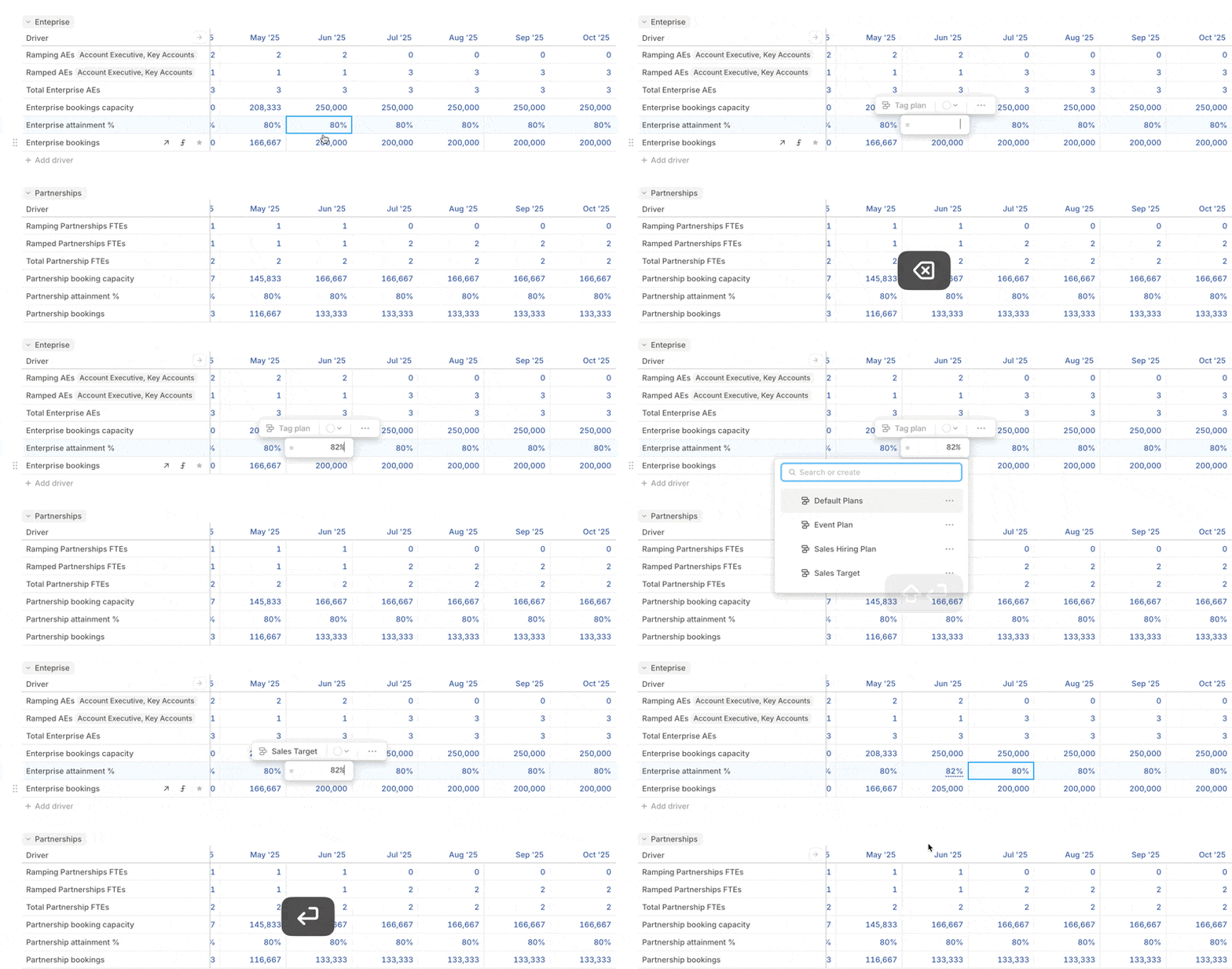 If multiple initiatives affect the same cell, add multiple adjustments so each can be tagged to a different plan.
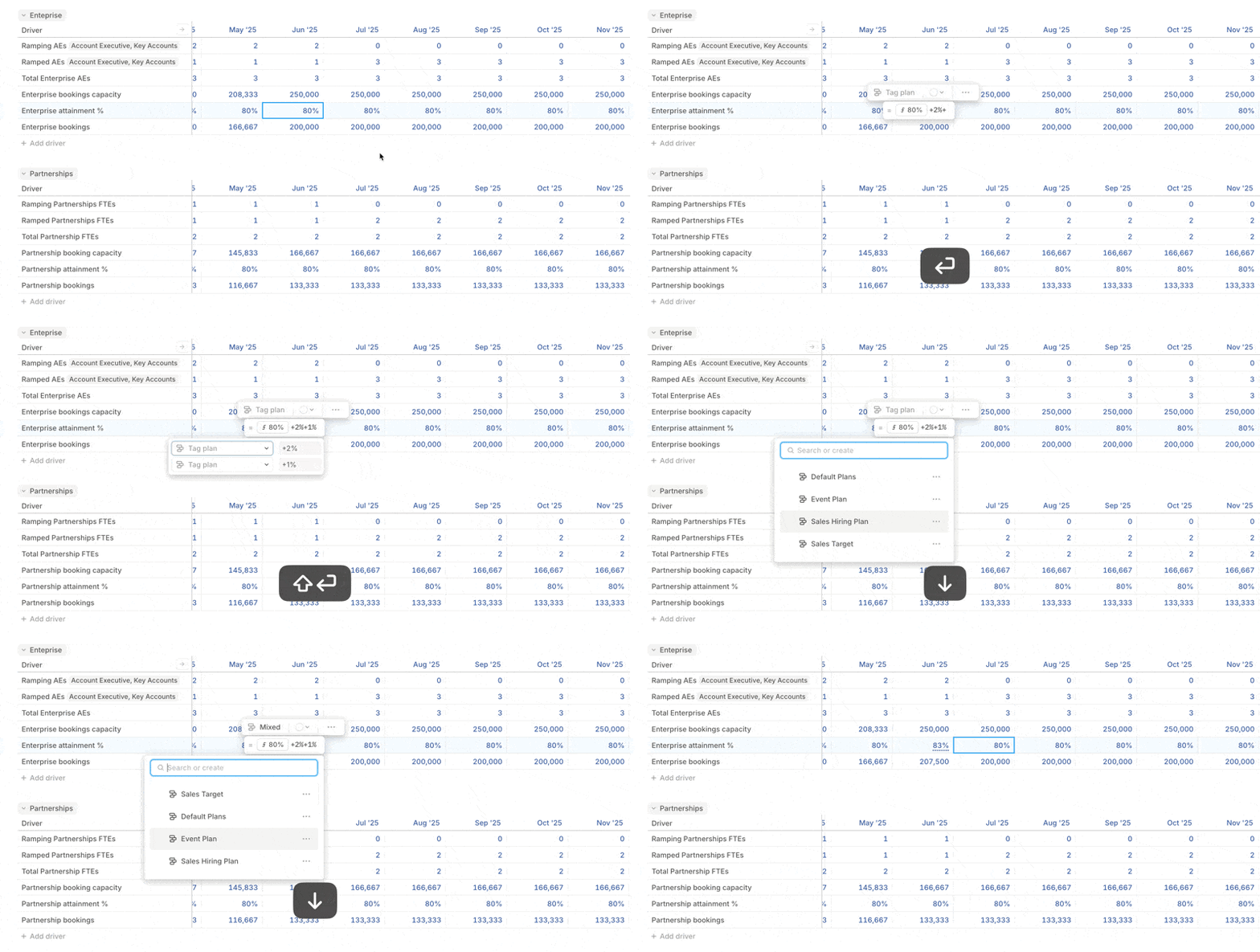 Click **Tag plan** and choose the plan for each adjustment.
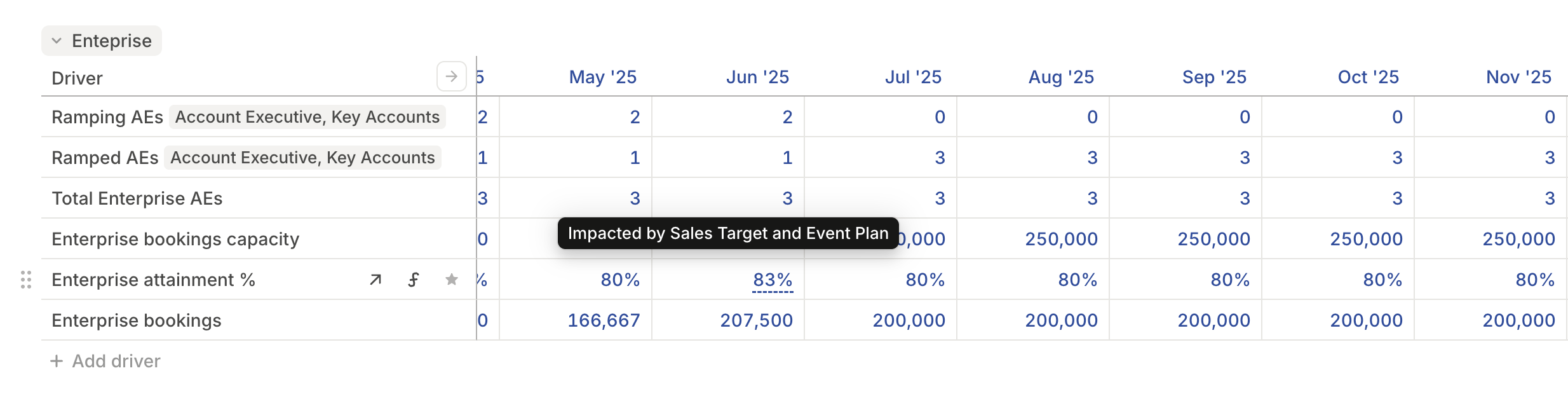
Cells with plan adjustments show an underline. Hover over the cell to see which plans are applied.
If you modify a cell without tagging it, Runway assigns the change to the **Default Plan**. You can tag it later from the cell editor.
To tag multiple cells with the same plan at once, select them together, then click **Tag plan**. See [Keyboard shortcuts](/get-started/keyboard-shortcuts) for related editing shortcuts.
Click **Tag plan** and choose the plan for each adjustment.
Cells with plan adjustments show an underline. Hover over the cell to see which plans are applied.
If you modify a cell without tagging it, Runway assigns the change to the **Default Plan**. You can tag it later from the cell editor.
To tag multiple cells with the same plan at once, select them together, then click **Tag plan**. See [Keyboard shortcuts](/get-started/keyboard-shortcuts) for related editing shortcuts.
 ## Connecting an employee's start date to a plan
If you work in an Employees database generated from a supported [HRIS integration](/integrations/hris/rippling), it includes a **Start Date** column by default.
* Synced employees with a future **Start Date** are automatically tagged as part of your **Default Plan**.
* Manually added rows for future hires are also included in **Default Plan** when their **Start Date** is in the future.
## Connecting an employee's start date to a plan
If you work in an Employees database generated from a supported [HRIS integration](/integrations/hris/rippling), it includes a **Start Date** column by default.
* Synced employees with a future **Start Date** are automatically tagged as part of your **Default Plan**.
* Manually added rows for future hires are also included in **Default Plan** when their **Start Date** is in the future.
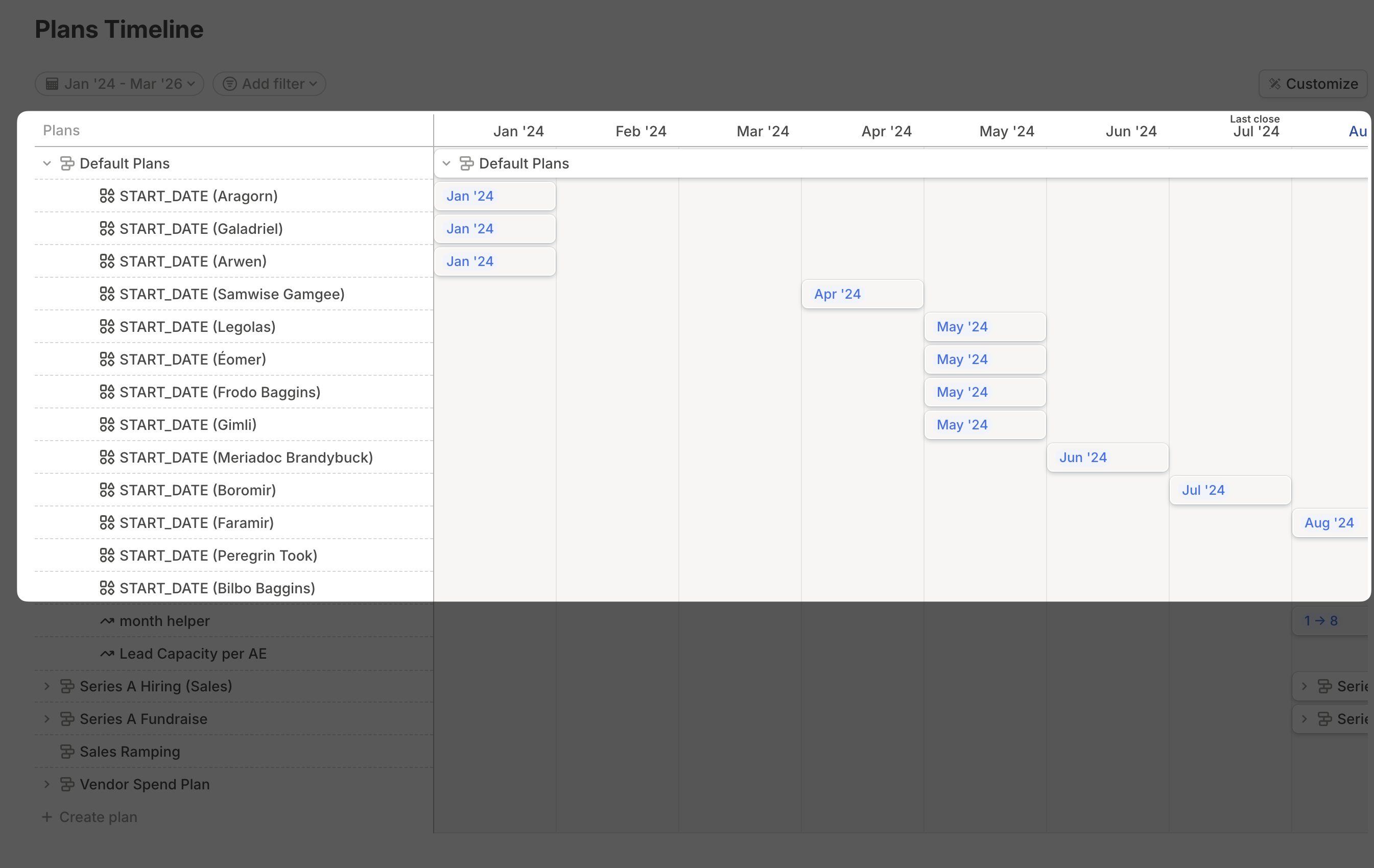 Use plan groups to move work out of **Default Plan** and into more meaningful initiatives.
Deleting a plan that originates from a new database row clears the **Start Date** for that object, but the row itself is not deleted.
## Organizing plans
Group related plans together when the list gets long.
Navigate to **Plans** from the sidebar.
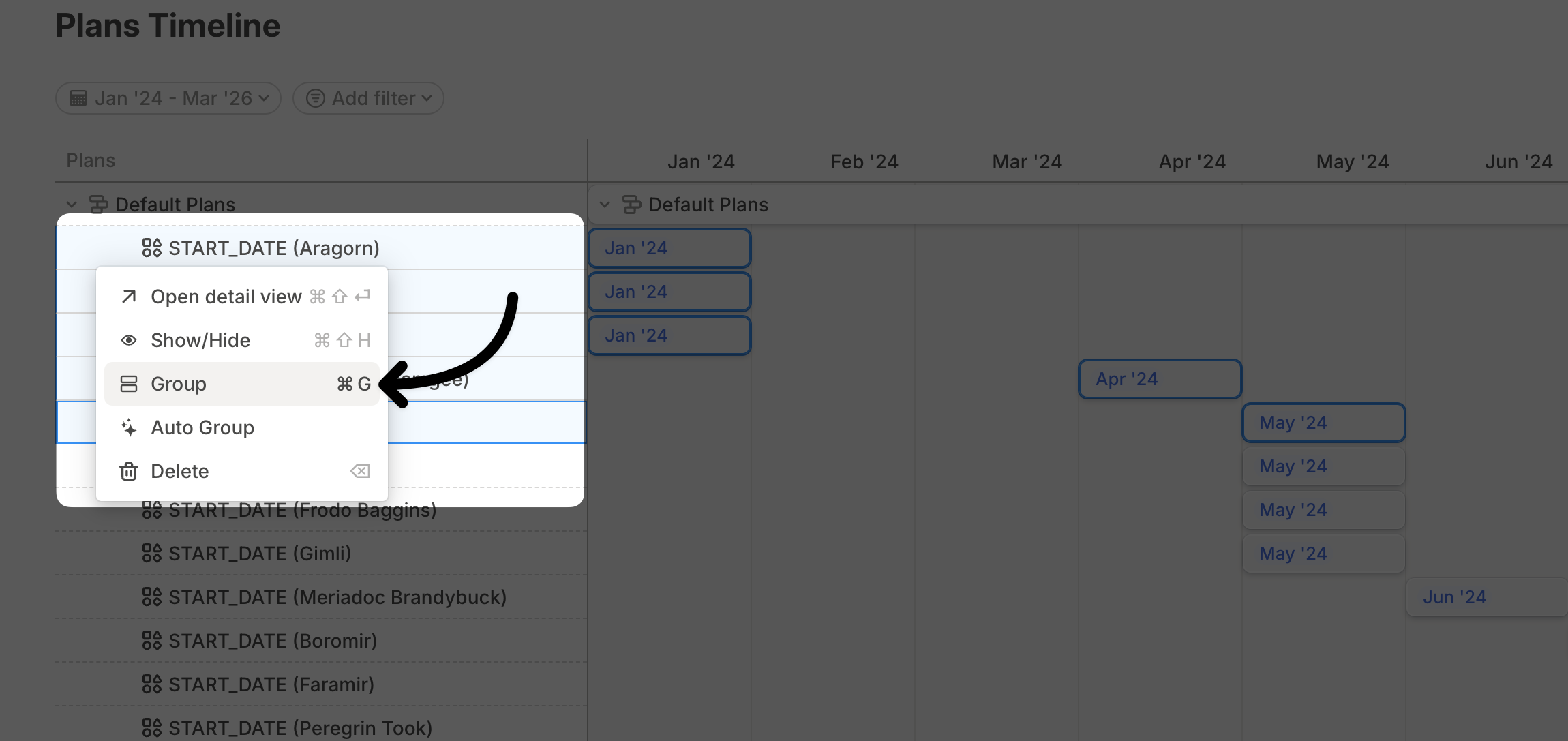
Select the plans you want to group.
Right-click the selection and choose **Group**. Enter a name and press Enter. The shortcuts reference lists the keyboard shortcut for grouping.
Use plan groups to move work out of **Default Plan** and into more meaningful initiatives.
Deleting a plan that originates from a new database row clears the **Start Date** for that object, but the row itself is not deleted.
## Organizing plans
Group related plans together when the list gets long.
Navigate to **Plans** from the sidebar.
Select the plans you want to group.
Right-click the selection and choose **Group**. Enter a name and press Enter. The shortcuts reference lists the keyboard shortcut for grouping.
 ## Surfacing plans in pages
[Pages](/concepts/pages/pages-basics) let you bring model context onto a shared canvas. A Plan timeline block shows plans in the current [scenario](/concepts/scenarios).
Type **/** and select **Plan timeline**.
Apply filters to show the plans relevant to the page. You can filter by plan name, model, and more.
Drag and drop plans to reorder them.
Plan timelines work well with [chart blocks](/concepts/pages/charts-block) that visualize upstream metrics affected by those plans.
Once plans are on a timeline, you can:
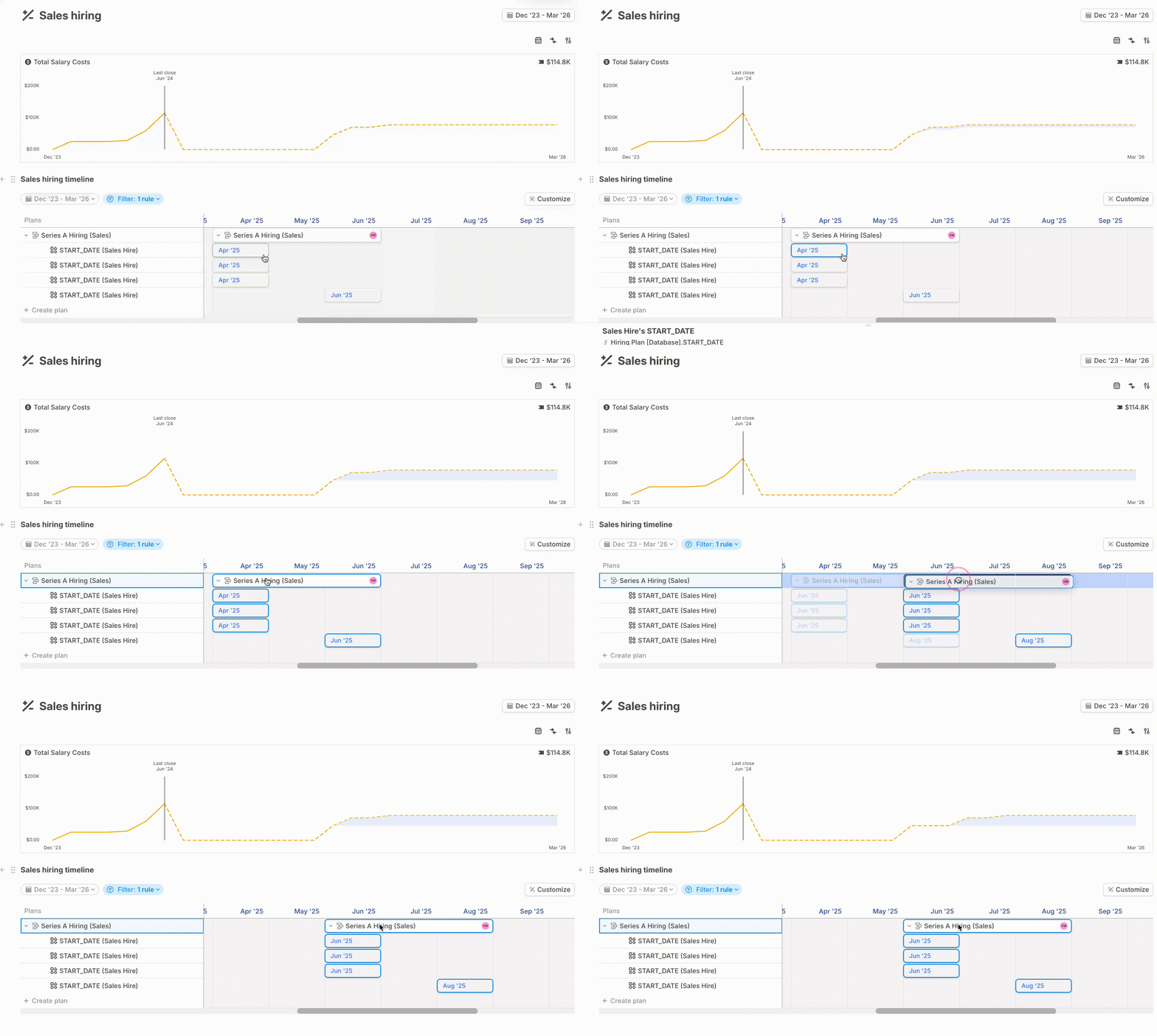
* Adjust plan values for a single month while leaving other months unchanged.
* Push a plan forward or backward in time.
* Stretch a plan across multiple months. If the plan uses `=`, the value repeats across all months. If it uses `+` or `-`, the total impact is distributed.
## Surfacing plans in pages
[Pages](/concepts/pages/pages-basics) let you bring model context onto a shared canvas. A Plan timeline block shows plans in the current [scenario](/concepts/scenarios).
Type **/** and select **Plan timeline**.
Apply filters to show the plans relevant to the page. You can filter by plan name, model, and more.
Drag and drop plans to reorder them.
Plan timelines work well with [chart blocks](/concepts/pages/charts-block) that visualize upstream metrics affected by those plans.
Once plans are on a timeline, you can:
* Adjust plan values for a single month while leaving other months unchanged.
* Push a plan forward or backward in time.
* Stretch a plan across multiple months. If the plan uses `=`, the value repeats across all months. If it uses `+` or `-`, the total impact is distributed.
 ## Marking KPI drivers
Mark important drivers as KPIs when you want them to stand out in formulas and plan detail views.
Right-click a driver or open its row menu.
Select **Set as KPI**.
KPI drivers show an indicator with the tooltip **This driver is a KPI**.
Plan detail views include KPI drivers in **KPIs impacted by plan** when the plan affects them.
## Accessing a plan's details
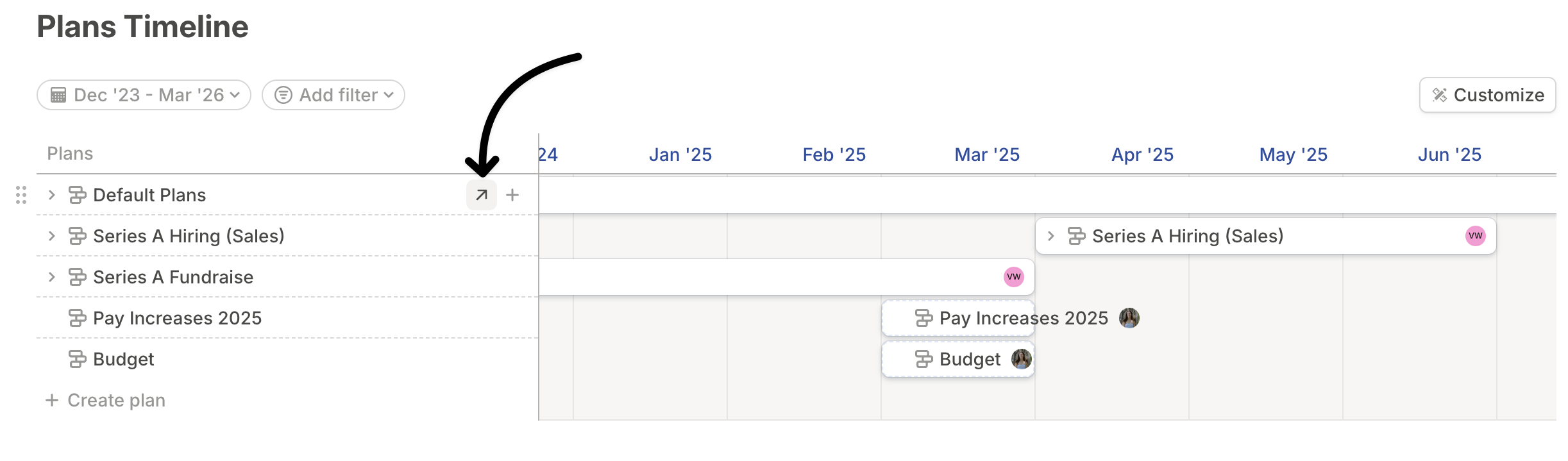
Click the upward arrow next to a plan's name on the timeline.
The detail view shows drivers and database rows impacted by that plan.
Drivers marked as KPIs also appear, so you can adjust the plan and immediately see the impact.
## Marking KPI drivers
Mark important drivers as KPIs when you want them to stand out in formulas and plan detail views.
Right-click a driver or open its row menu.
Select **Set as KPI**.
KPI drivers show an indicator with the tooltip **This driver is a KPI**.
Plan detail views include KPI drivers in **KPIs impacted by plan** when the plan affects them.
## Accessing a plan's details
Click the upward arrow next to a plan's name on the timeline.
The detail view shows drivers and database rows impacted by that plan.
Drivers marked as KPIs also appear, so you can adjust the plan and immediately see the impact.
 ## Deleting a plan
To delete a plan permanently, right-click its name and select **Delete**. In the details view, you can also click the delete icon.
## Deleting a plan
To delete a plan permanently, right-click its name and select **Delete**. In the details view, you can also click the delete icon.
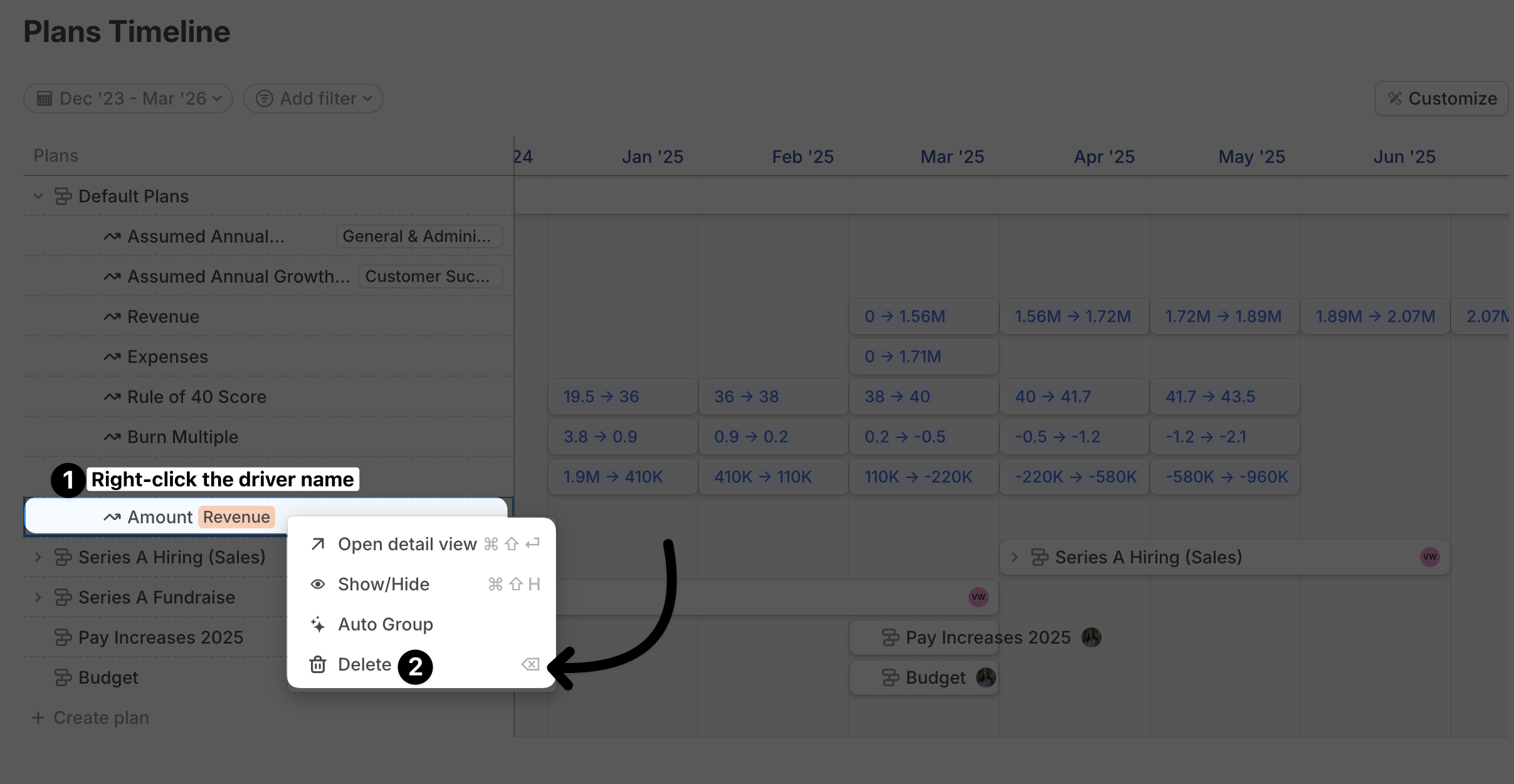
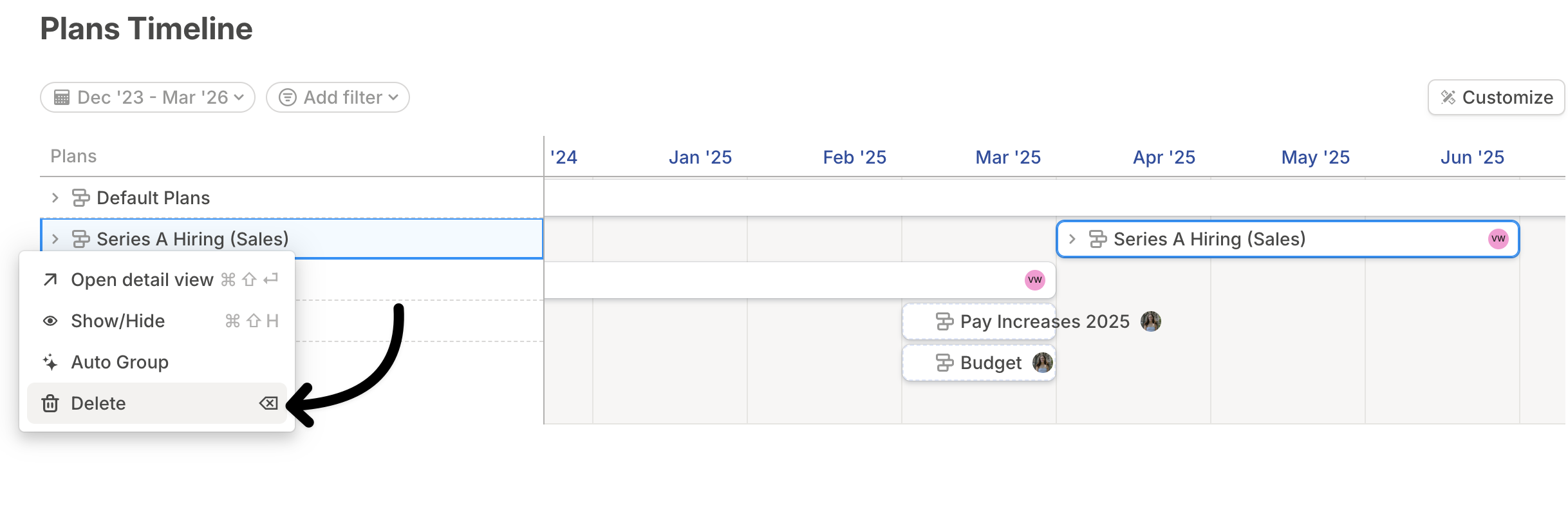 You can also delete the impact of a plan on a single driver. Right-click the driver's name in the timeline and select **Delete**.
 ## Plans FAQ
No. Plans remain available in Runway after you move last close.
Whether a plan affects a visible cell depends on what else applies to that month. Runway checks hardcoded values, actuals formulas, integration data, plan hardcodes, and forecast formulas according to the formula and last-close rules for that driver.
## What's next
* [Scenarios](/concepts/scenarios)
* [Budget vs. actuals](/guides/modeling/bva)
* [Drivers basics](/concepts/drivers/drivers-basics)
## Plans FAQ
No. Plans remain available in Runway after you move last close.
Whether a plan affects a visible cell depends on what else applies to that month. Runway checks hardcoded values, actuals formulas, integration data, plan hardcodes, and forecast formulas according to the formula and last-close rules for that driver.
## What's next
* [Scenarios](/concepts/scenarios)
* [Budget vs. actuals](/guides/modeling/bva)
* [Drivers basics](/concepts/drivers/drivers-basics)