> ## Documentation Index
> Fetch the complete documentation index at: https://docs.runway.com/llms.txt
> Use this file to discover all available pages before exploring further.
# Navigating Runway
> Use Runway navigation, search, sidebar sections, templates, unlisted drivers, product updates, and activity history to move through your workspace.
Runway navigation combines global search, a customizable sidebar, and activity history. Use these surfaces to jump to work, organize pages and models, recover drivers that are not on any page, and inspect recent changes.
## Search
Press `⌘K` (`Ctrl+K` on Windows) to open search. The search field uses the placeholder **Search Runway** and returns results in **Pages**, **Drivers**, and **Databases**. Use the arrow keys to select a result, then press Enter to jump to it.
## Default sidebar structure
When you first start using Runway, the sidebar includes:
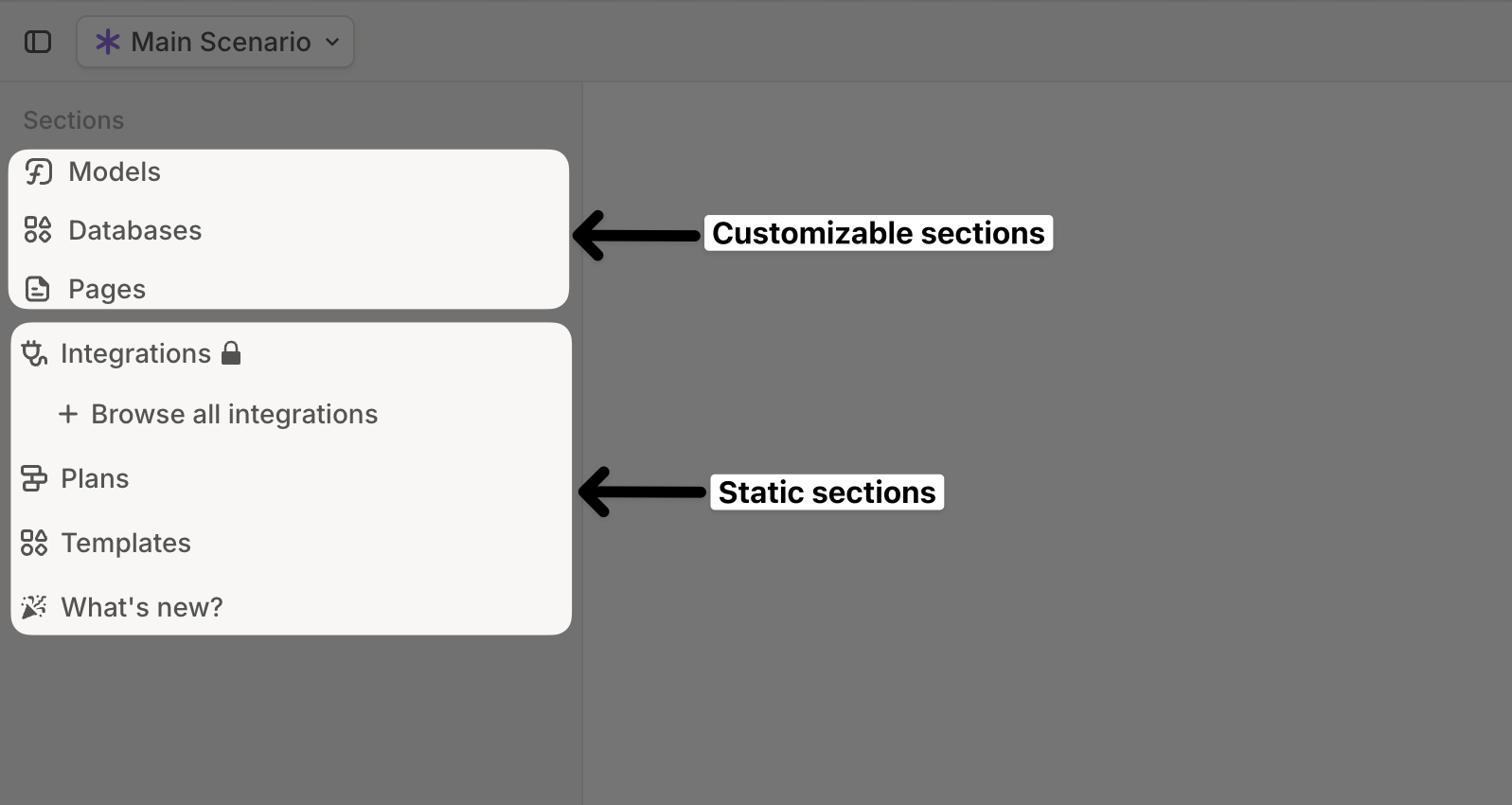
* **Three customizable sections**: **Models, Databases, Pages.** You can rename, reorder, or delete these sections.
* **Static items** such as **Integrations**, **Plans**, **Templates**, **Unlisted Drivers**, and **What's new?**.
 ## Sections for better organization
We recommend structuring the sidebar with **sections** to group related models, databases, and pages. For example, you might have:
* A section for **department pages**
* Another for **P\&L reports** at different levels of granularity
* A section for **executive reporting**
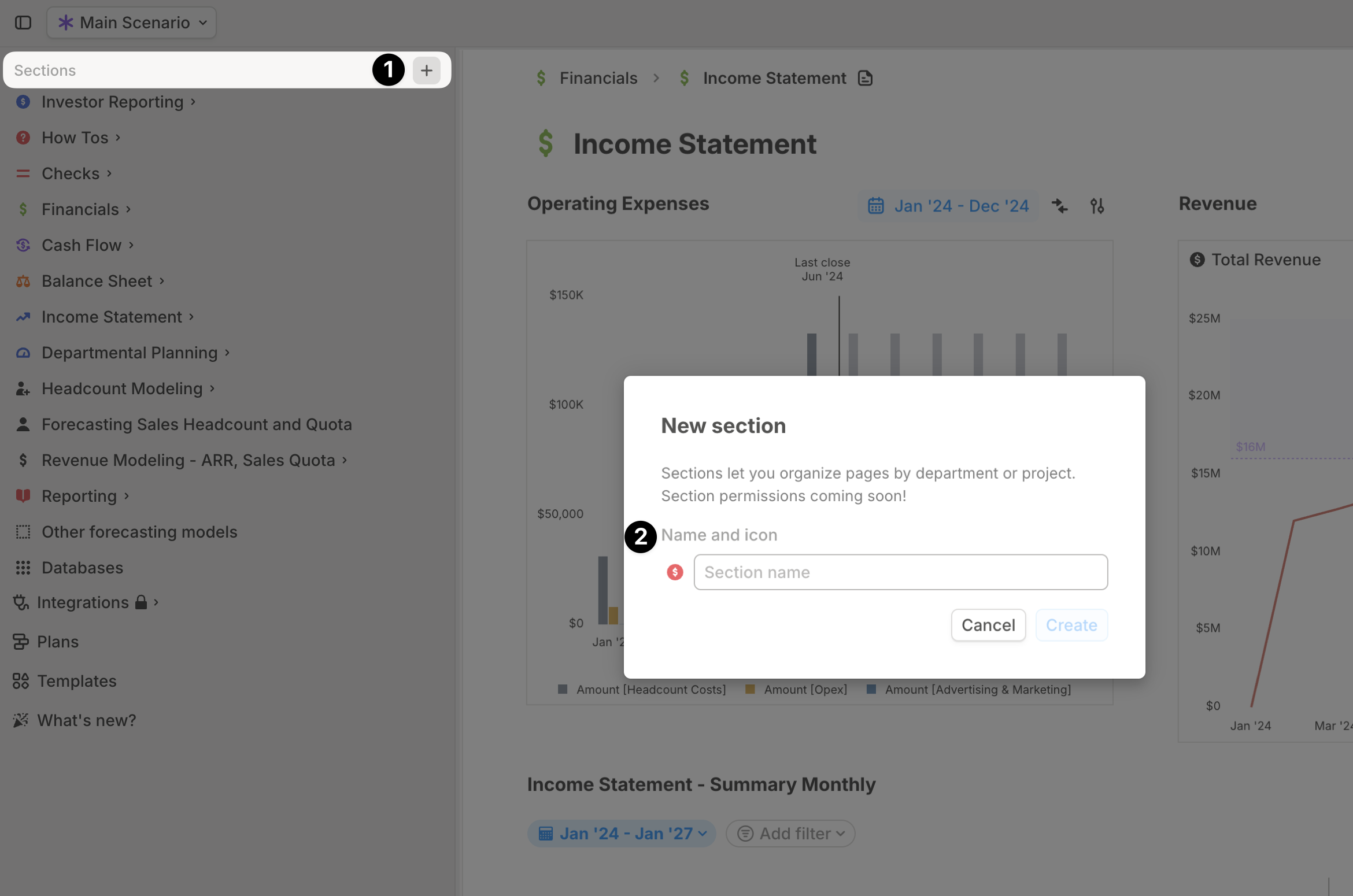
To create a new section, click the **+** button in the **top-right** of the sidebar, then give it a **name** and **icon**. It will appear as the first section.
## Sections for better organization
We recommend structuring the sidebar with **sections** to group related models, databases, and pages. For example, you might have:
* A section for **department pages**
* Another for **P\&L reports** at different levels of granularity
* A section for **executive reporting**
To create a new section, click the **+** button in the **top-right** of the sidebar, then give it a **name** and **icon**. It will appear as the first section.
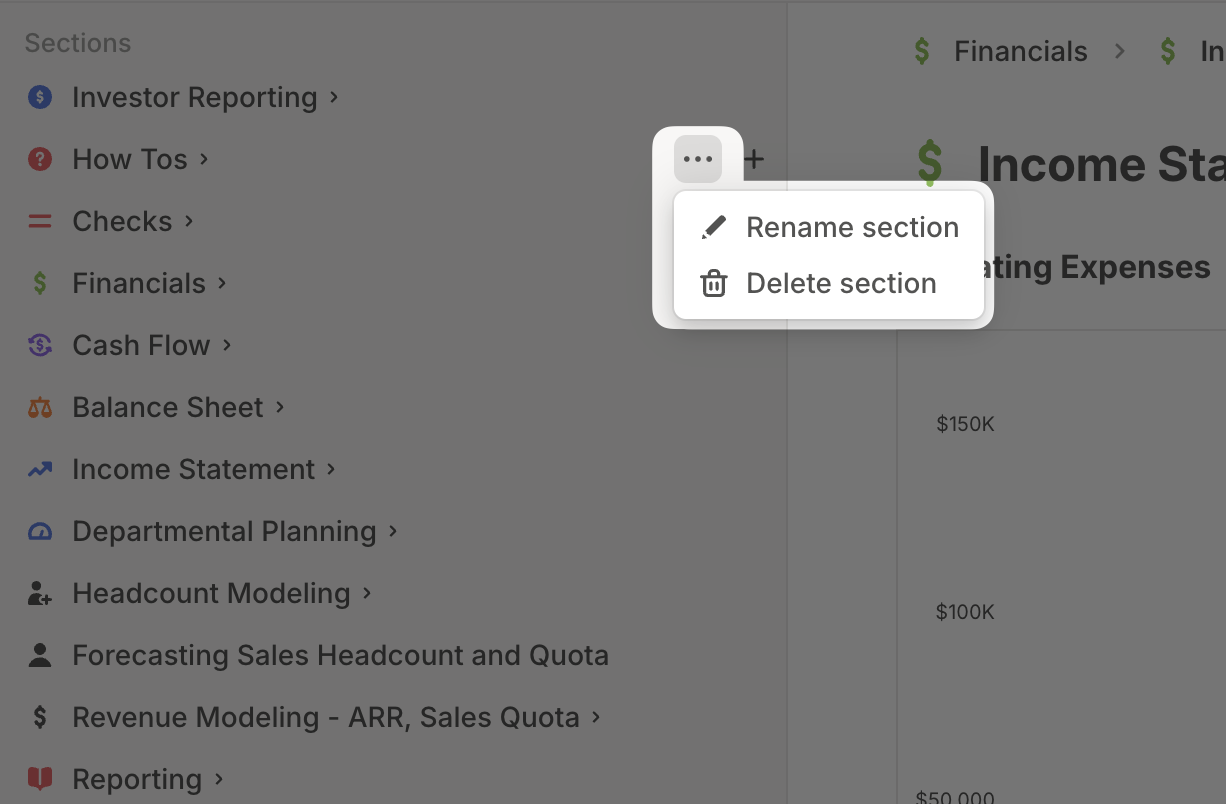
 You can **move** a section by dragging it to the right spot. To **rename or delete** a section, click the **•••** (more options) button next to its name.
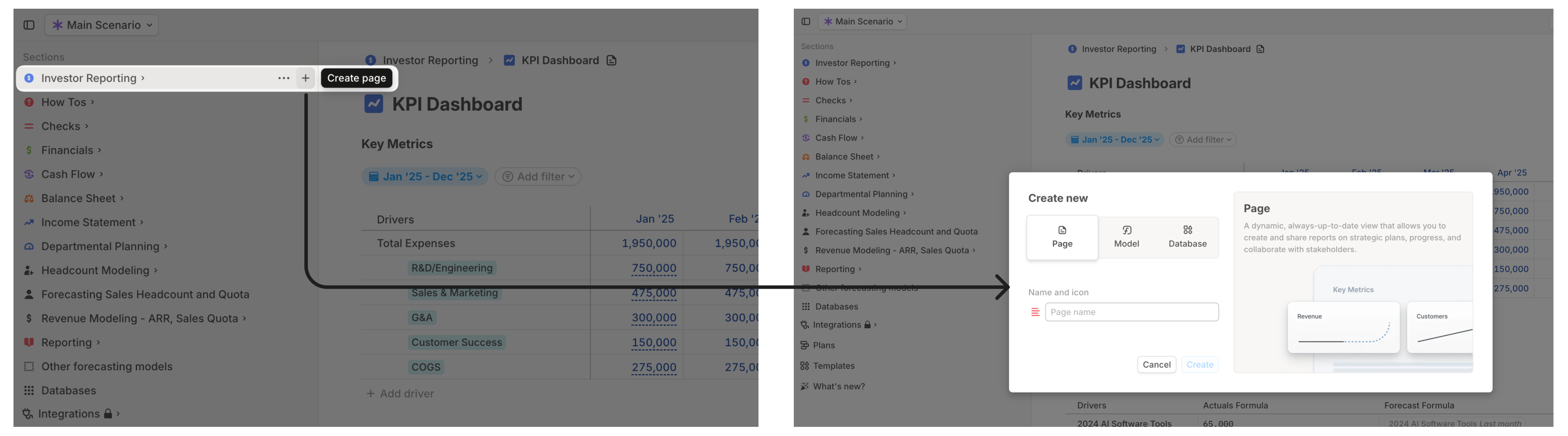
 To add content within a section, click the **+** button next to the section name. Any **model, database, or page** created this way will be added to that section.
 You can also **move existing items** into a section by dragging them. Additionally, you can **nest** models, databases, or pages under each other by dragging them beneath one another.
You can expand and collapse all elements in the sidebar in bulk with `Cmd+Click` or `Shift+Click` on any section in the sidebar, similar to Excel's hide / show group behavior.
## Icons for easier scanning
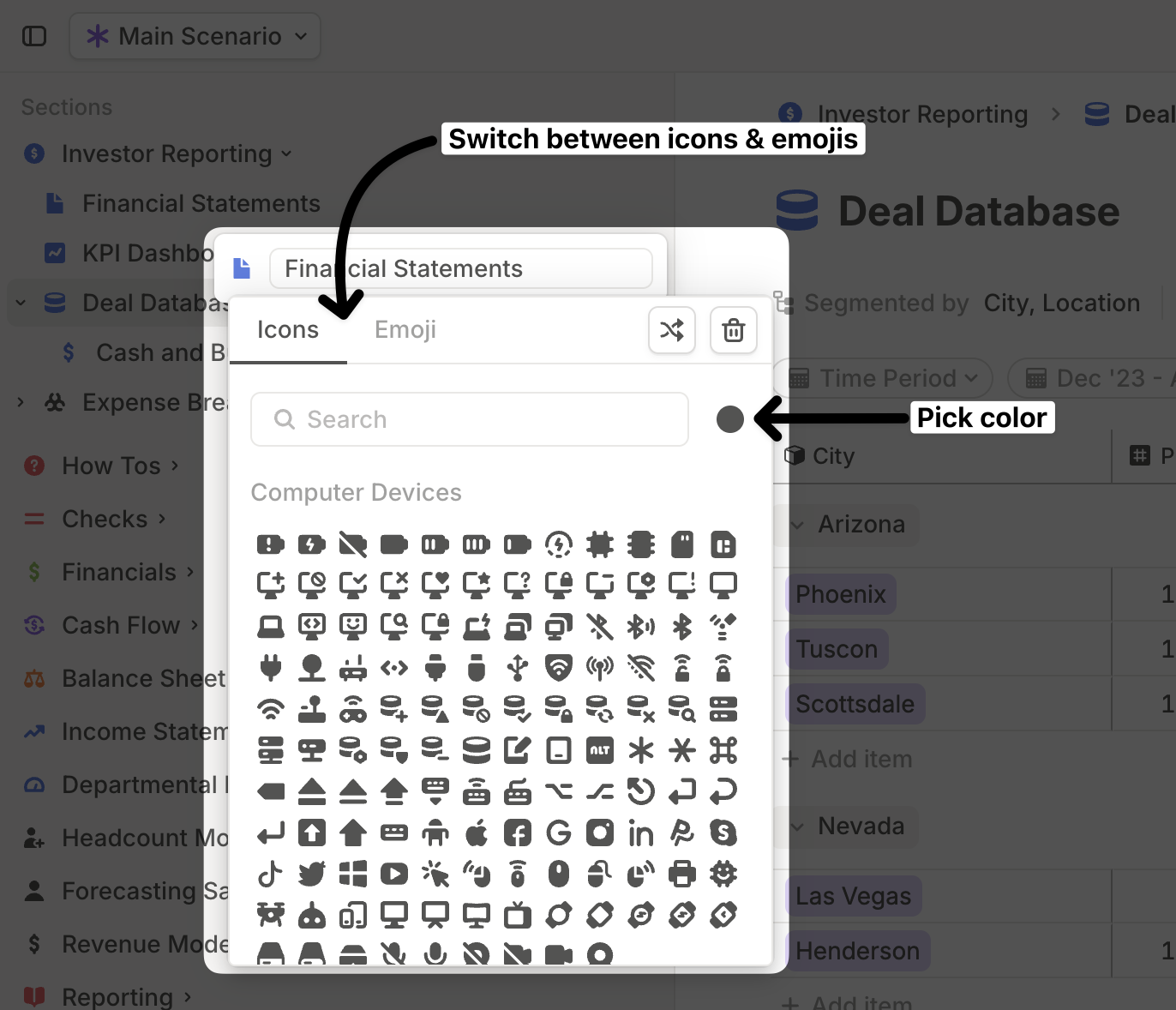
Every **section, model, database, or page** in Runway can have an **emoji or icon** to make it easier to recognize at a glance.
* Runway offers **1,000+ icons** in nine colors.
* Emojis also support **skin tone variations**.
To change an icon for an existing section, model, database, or page, click the **•••** (more options) button next to its name and select **"Rename"**. From there, you can edit the name and choose a new icon.
When selecting an icon, you can switch between **icons and emojis** at the top of the selection panel and use **search** to find the right one. Icons also allow you to **customize colors**.
You can also **move existing items** into a section by dragging them. Additionally, you can **nest** models, databases, or pages under each other by dragging them beneath one another.
You can expand and collapse all elements in the sidebar in bulk with `Cmd+Click` or `Shift+Click` on any section in the sidebar, similar to Excel's hide / show group behavior.
## Icons for easier scanning
Every **section, model, database, or page** in Runway can have an **emoji or icon** to make it easier to recognize at a glance.
* Runway offers **1,000+ icons** in nine colors.
* Emojis also support **skin tone variations**.
To change an icon for an existing section, model, database, or page, click the **•••** (more options) button next to its name and select **"Rename"**. From there, you can edit the name and choose a new icon.
When selecting an icon, you can switch between **icons and emojis** at the top of the selection panel and use **search** to find the right one. Icons also allow you to **customize colors**.
 ## Integrations
Use **Integrations** to open connected data sources or browse new ones. Choose **Browse all integrations** from the sidebar when you want to see the live in-app directory.
## Templates
Use **Templates** to find reusable page templates that can be added to Runway when they are available to your workspace.
## Unlisted Drivers
Drivers that are not on any page live in **Unlisted Drivers**. This is where you can recover drivers that were removed from a page but not deleted. For the difference between removing and deleting drivers, see [Duplicating, removing & deleting](/concepts/drivers/duplicate-remove-delete).
## What's new?
Use **What's new?** to open [Runway product updates](https://runway.com/product-updates).
## Activity history
Click the clock icon labeled **History**, then open the **Activity** pane to review recent changes. Activity history groups changes by user and includes timestamps.
Use **Exclude updates from Runway** when you want to hide system-generated updates from the list. From a change's overflow menu, use **Save as locked scenario** to snapshot the model at that point. See [Scenarios](/concepts/scenarios#locked-scenarios) for how locked scenarios work.
## FAQ
Drivers that are removed from a page but not deleted appear in **Unlisted Drivers**.
No. Search is for navigation. It helps you jump to pages, drivers, and databases.
Yes. Create sections from the sidebar, then drag pages, models, and databases into them.
## What's next
* [Pages basics](/concepts/pages/pages-basics)
* [Duplicating, removing & deleting](/concepts/drivers/duplicate-remove-delete)
* [Scenarios](/concepts/scenarios)
## Integrations
Use **Integrations** to open connected data sources or browse new ones. Choose **Browse all integrations** from the sidebar when you want to see the live in-app directory.
## Templates
Use **Templates** to find reusable page templates that can be added to Runway when they are available to your workspace.
## Unlisted Drivers
Drivers that are not on any page live in **Unlisted Drivers**. This is where you can recover drivers that were removed from a page but not deleted. For the difference between removing and deleting drivers, see [Duplicating, removing & deleting](/concepts/drivers/duplicate-remove-delete).
## What's new?
Use **What's new?** to open [Runway product updates](https://runway.com/product-updates).
## Activity history
Click the clock icon labeled **History**, then open the **Activity** pane to review recent changes. Activity history groups changes by user and includes timestamps.
Use **Exclude updates from Runway** when you want to hide system-generated updates from the list. From a change's overflow menu, use **Save as locked scenario** to snapshot the model at that point. See [Scenarios](/concepts/scenarios#locked-scenarios) for how locked scenarios work.
## FAQ
Drivers that are removed from a page but not deleted appear in **Unlisted Drivers**.
No. Search is for navigation. It helps you jump to pages, drivers, and databases.
Yes. Create sections from the sidebar, then drag pages, models, and databases into them.
## What's next
* [Pages basics](/concepts/pages/pages-basics)
* [Duplicating, removing & deleting](/concepts/drivers/duplicate-remove-delete)
* [Scenarios](/concepts/scenarios)