> ## Documentation Index
> Fetch the complete documentation index at: https://docs.runway.com/llms.txt
> Use this file to discover all available pages before exploring further.
# Budget vs. actuals
> Compare your planned budget with actuals so you can track accuracy, spot trends, and refine future forecasts.
Budget vs. actuals analysis compares a locked budget scenario with actuals from Main. Use it after monthly close to understand where performance differed from plan and which assumptions need attention.
## Step 1: Lock your budget
Your budget lives in a scenario. Lock it before running BvA so later Main updates and team edits do not change the comparison baseline.
In scenario settings, set **Pull updates from Main** to **Disabled**. This prevents Main changes and integration sync changes from updating the budget scenario.
If the budget should be read-only, disable editing in scenario settings.
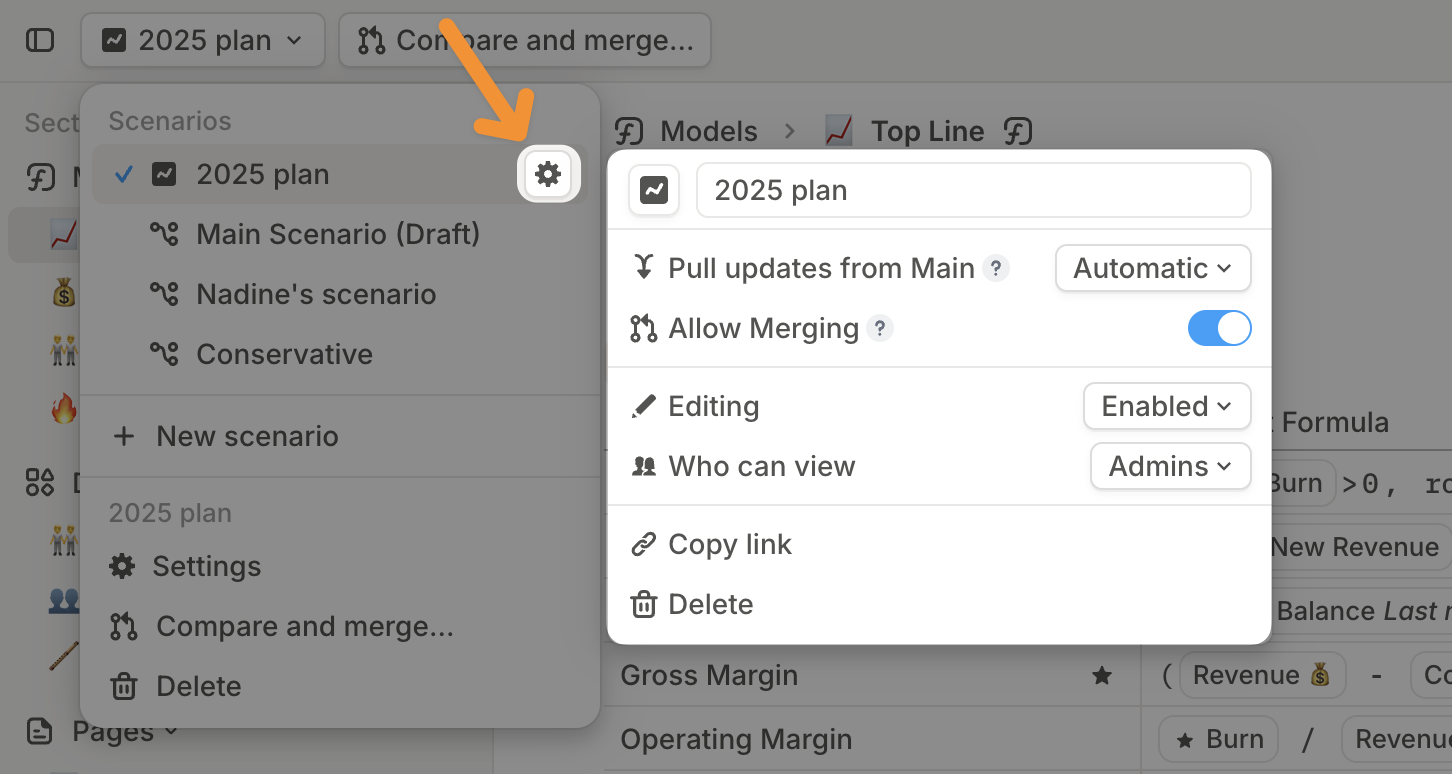 You can also use a [locked scenario](/concepts/scenarios#locked-scenarios) as the budget baseline.
## Step 2: Set up your actuals
Actuals come from Main and are governed by [last close](/concepts/last-close).
Switch to Main.
Set **last close** to the end of the period you are analyzing. For example, to compare January through March, set last close to March.
You can also use a [locked scenario](/concepts/scenarios#locked-scenarios) as the budget baseline.
## Step 2: Set up your actuals
Actuals come from Main and are governed by [last close](/concepts/last-close).
Switch to Main.
Set **last close** to the end of the period you are analyzing. For example, to compare January through March, set last close to March.
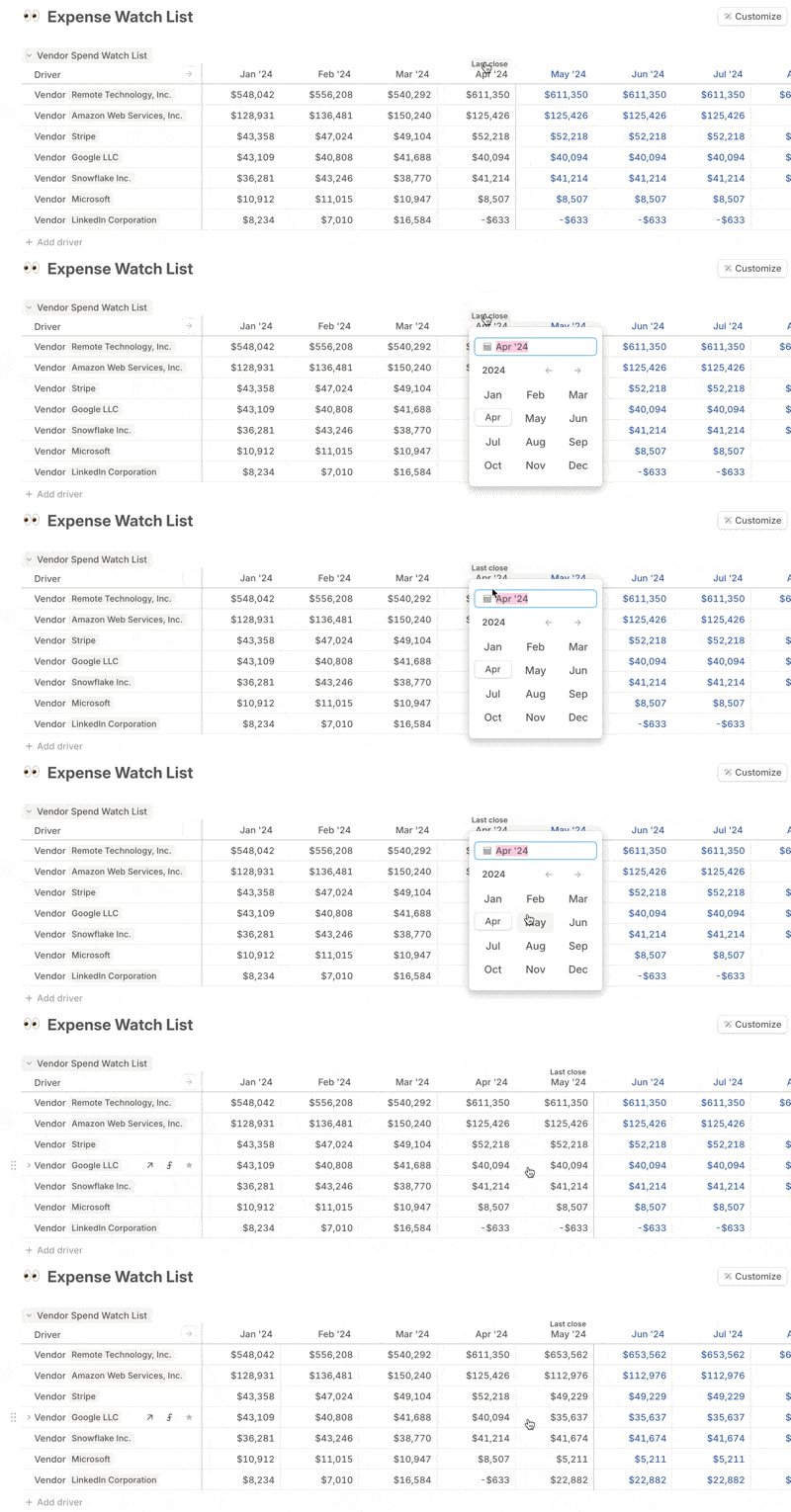 Confirm that actuals formulas are populating closed months and forecast formulas are taking over after last close.
## Step 3: Compare budget vs. actuals
You can analyze variances in tables or charts.
### Create a BvA table
Open a model or create a **Driver table** block on a page.
Add the drivers you want to include in the BvA.
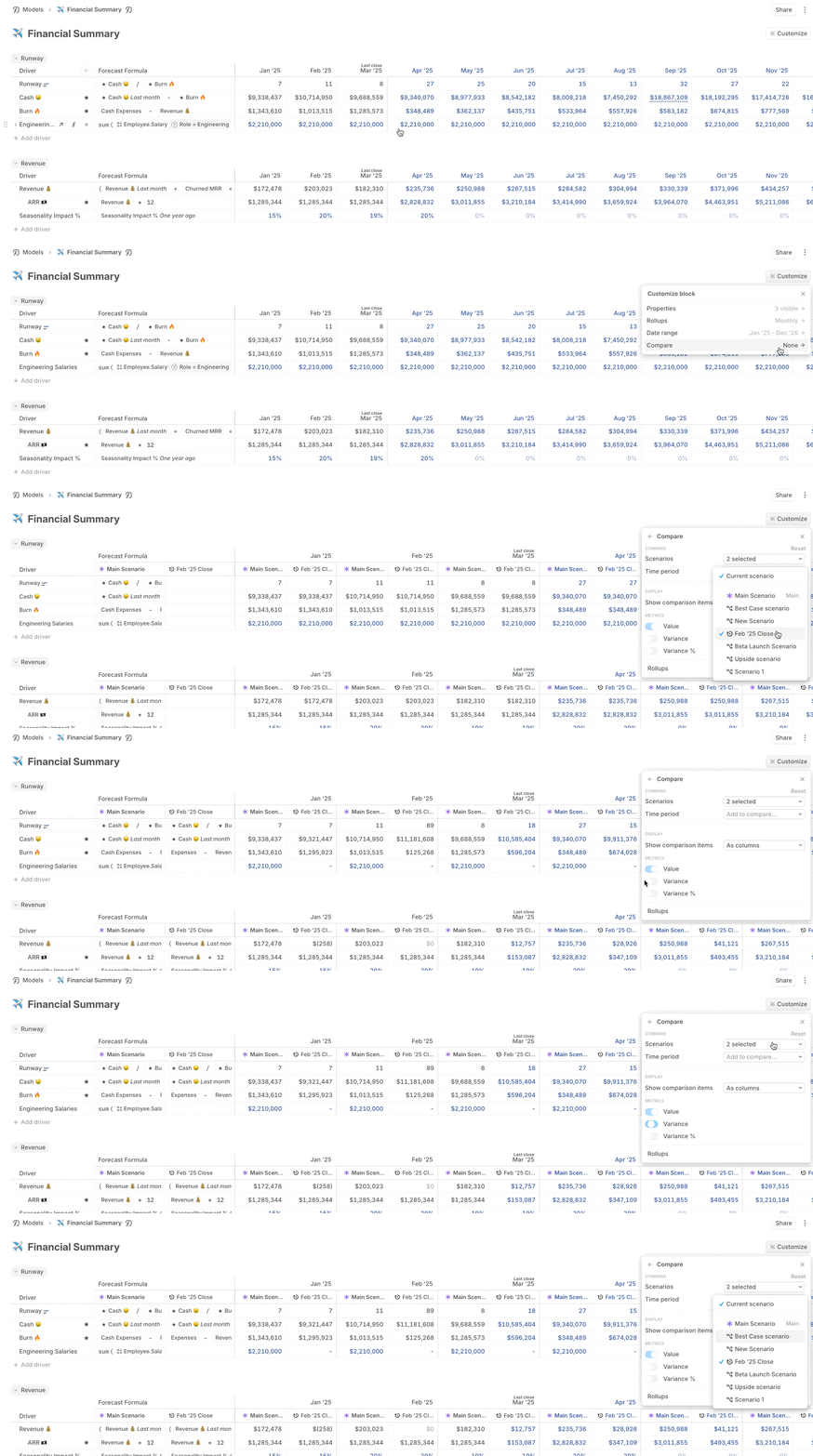
Click **Customize**, select **Compare**, and choose the budget scenario.
In comparison view, **Variance** and **Variance %** are on by default. You can toggle comparison metrics from the same menu.
Show scenarios as rows or columns.
Confirm that actuals formulas are populating closed months and forecast formulas are taking over after last close.
## Step 3: Compare budget vs. actuals
You can analyze variances in tables or charts.
### Create a BvA table
Open a model or create a **Driver table** block on a page.
Add the drivers you want to include in the BvA.
Click **Customize**, select **Compare**, and choose the budget scenario.
In comparison view, **Variance** and **Variance %** are on by default. You can toggle comparison metrics from the same menu.
Show scenarios as rows or columns.
 ### Customize variance display
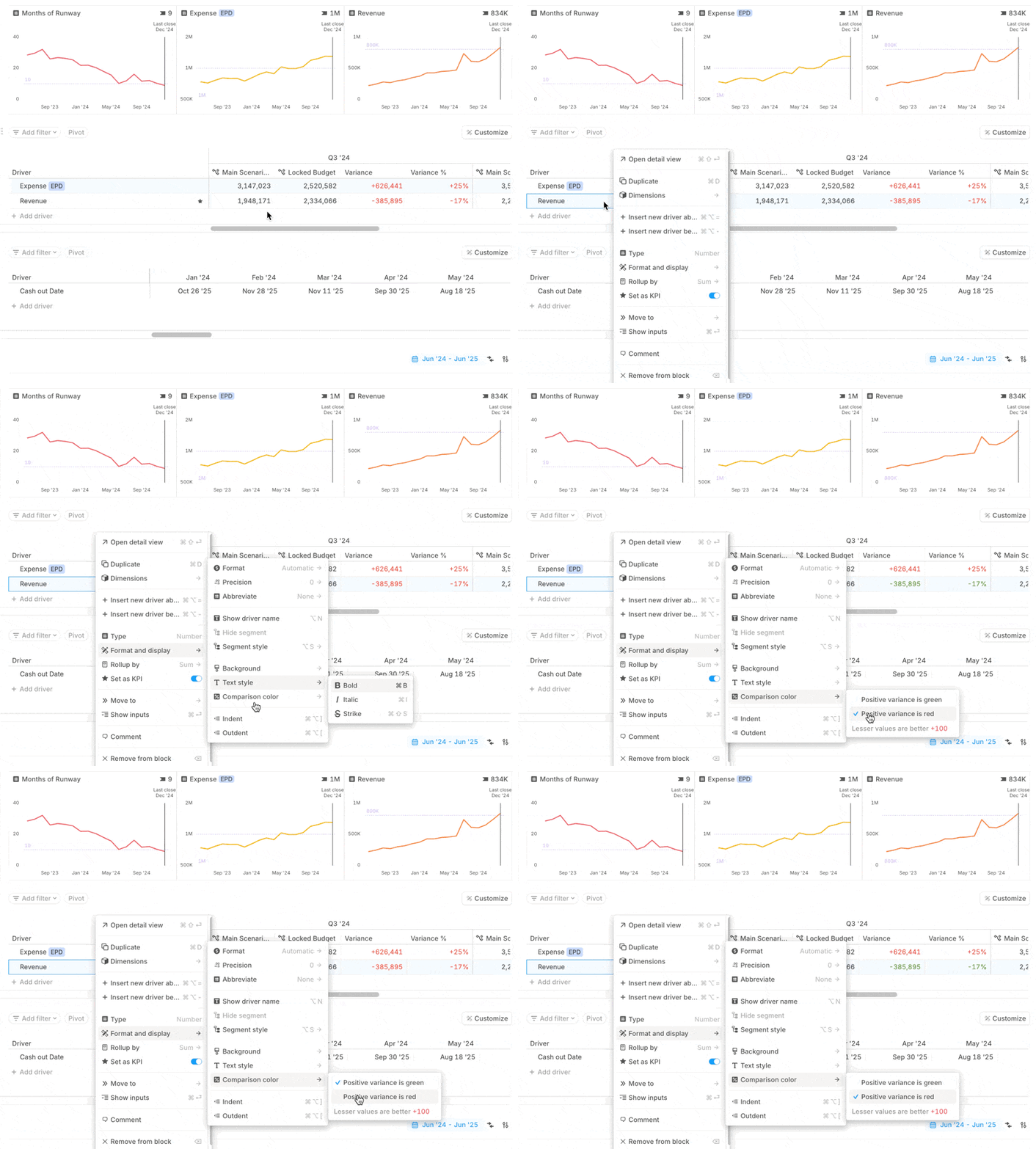
Variance colors follow the driver's comparison-color setting. For example, expenses usually use a setting where lower values are better, while income usually uses a setting where higher values are better.
Variance respects the driver's abbreviation setting, so thousands and millions display consistently with the rest of the driver table.
### Customize variance display
Variance colors follow the driver's comparison-color setting. For example, expenses usually use a setting where lower values are better, while income usually uses a setting where higher values are better.
Variance respects the driver's abbreviation setting, so thousands and millions display consistently with the rest of the driver table.
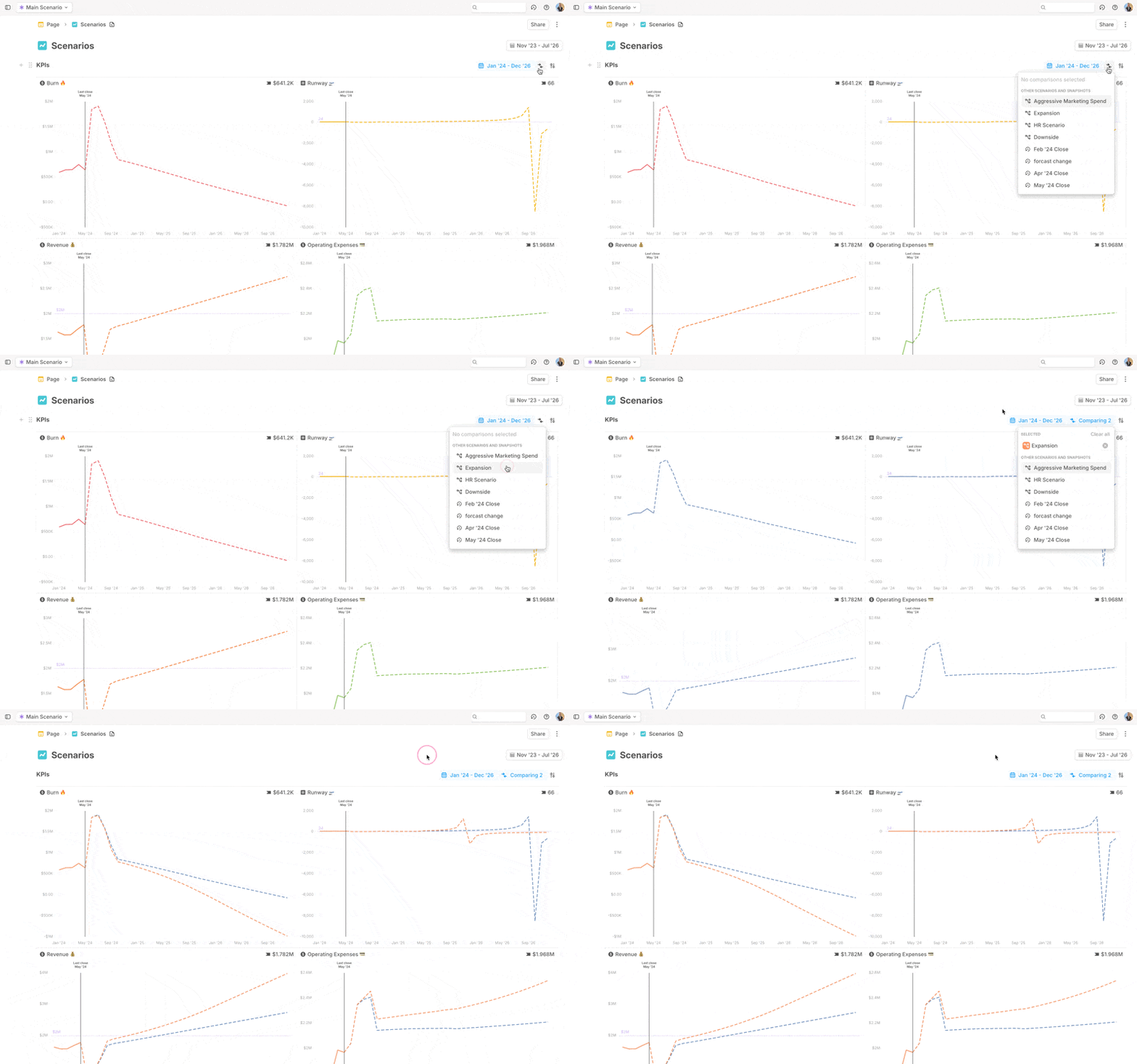
 ### Create a BvA chart
Create a **Driver charts** block on a page.
Add the drivers you want to compare.
Click **Compare** and select the budget scenario.
Use a line or column chart to show trends.
### Create a BvA chart
Create a **Driver charts** block on a page.
Add the drivers you want to compare.
Click **Compare** and select the budget scenario.
Use a line or column chart to show trends.
 ## What's next
* [Scenarios](/concepts/scenarios)
* [Last close](/concepts/last-close)
* [Drivers table block](/concepts/pages/drivers-table-block)
## What's next
* [Scenarios](/concepts/scenarios)
* [Last close](/concepts/last-close)
* [Drivers table block](/concepts/pages/drivers-table-block)