> ## Documentation Index
> Fetch the complete documentation index at: https://docs.runway.com/llms.txt
> Use this file to discover all available pages before exploring further.
# Prorated salaries
> Use Runway’s date math functions to model prorated salaries for employees who start or leave mid-month with precision.
This guide walks through adding a prorated salary field to your HRIS-sourced Employee database.
As a reminder, HRIS databases work differently than other Runway databases. For more information, please refer to our [HRIS databases article](/concepts/databases/hris-databases).
## Step 1: Create `Prorated Monthly Salary` field
In your **Employee database**, add a **Number field**.
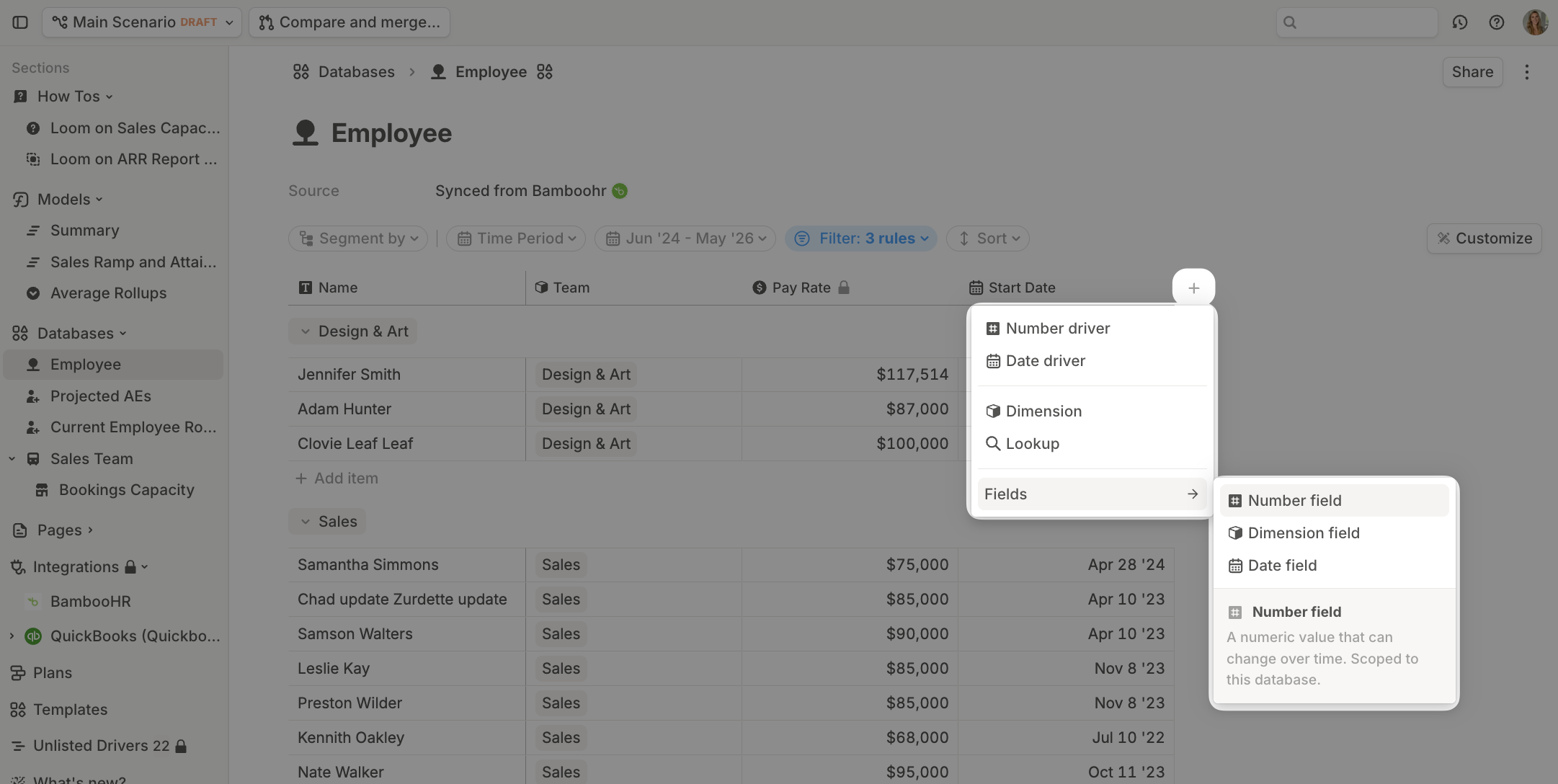 Name the field **Prorated Monthly Salary**.
## Step 2: Handle mid-month starts
1. Add a formula to **Prorated Salary**. Begin with an `if()` statement that checks if the start date falls within the current month.
Name the field **Prorated Monthly Salary**.
## Step 2: Handle mid-month starts
1. Add a formula to **Prorated Salary**. Begin with an `if()` statement that checks if the start date falls within the current month.
 2. If true, use the `dateDiff()` function to calculate the difference in days between the start date and the end of that month. You'll also want to add 1 day onto this, to ensure you're including the starting day too.
 3. Use `daysInMonth()` to divide by the total days in the month and calculate the prorated percentage.
 4. Multiply this prorated fraction by the employee's monthly salary (annual salary divided by 12).
 ## Step 3: Account for mid-month terminations
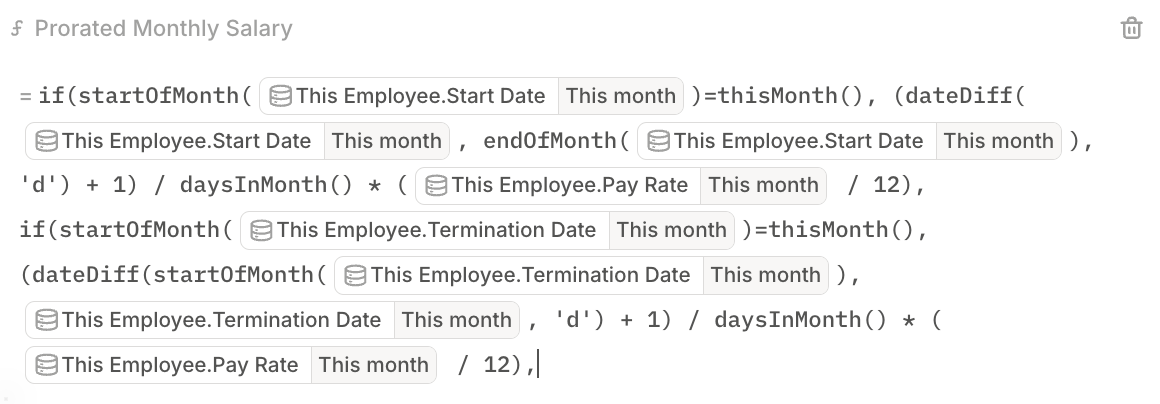
Extend your `IF()` formula to account for employees who terminate mid-month by adding a second condition.
1. Add a second `IF()` statement by copying the formula so far, and pasting it at the end.
2. Then, update `This Employee.Start Date` to `This Employee.Termination Date` by clicking on each reference of `This Employee.Start Date` -> hitting *Column* -> and then referencing `This Employee.Termination Date` instead.
3. Next, you'll want to update the dateDiff() function so that the first argument is the *start* of the termination month, and the second argument is just the Termination Date itself.
## Step 3: Account for mid-month terminations
Extend your `IF()` formula to account for employees who terminate mid-month by adding a second condition.
1. Add a second `IF()` statement by copying the formula so far, and pasting it at the end.
2. Then, update `This Employee.Start Date` to `This Employee.Termination Date` by clicking on each reference of `This Employee.Start Date` -> hitting *Column* -> and then referencing `This Employee.Termination Date` instead.
3. Next, you'll want to update the dateDiff() function so that the first argument is the *start* of the termination month, and the second argument is just the Termination Date itself.
 ## Step 4: Calculate full-month salaries
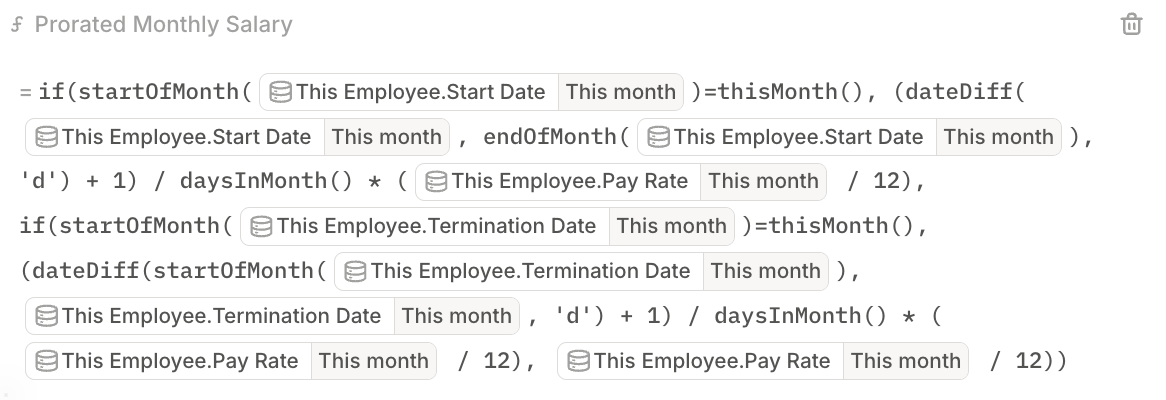
Finally, handle the default case where the employee worked the full month. Set the final case to the (annual) pay rate / 12 for full-month employees.
## Step 4: Calculate full-month salaries
Finally, handle the default case where the employee worked the full month. Set the final case to the (annual) pay rate / 12 for full-month employees.
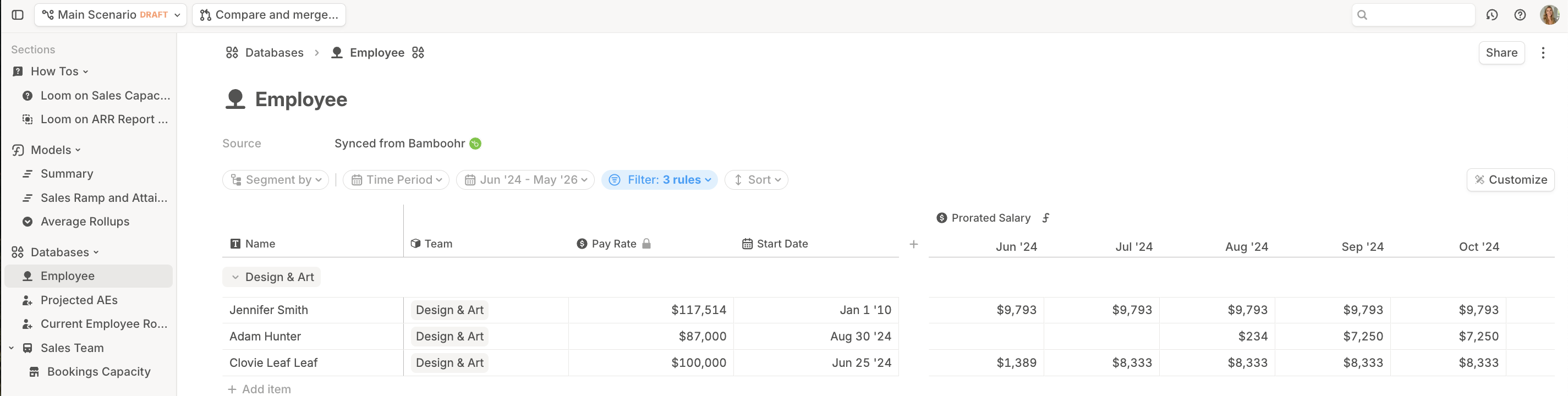
 Hit **Enter** to save your formula and review your data. This column formula automatically applies to all employees in your database.
 For additional information about headcount planning, see [this article](https://docs.runway.com/guides/modeling/headcount-planning).