> ## Documentation Index
> Fetch the complete documentation index at: https://docs.runway.com/llms.txt
> Use this file to discover all available pages before exploring further.
# Stripe
> The Stripe integration allows you to automatically sync your balance, payment & subscriber data directly into Runway.
## SQL-powered integration via Fivetran
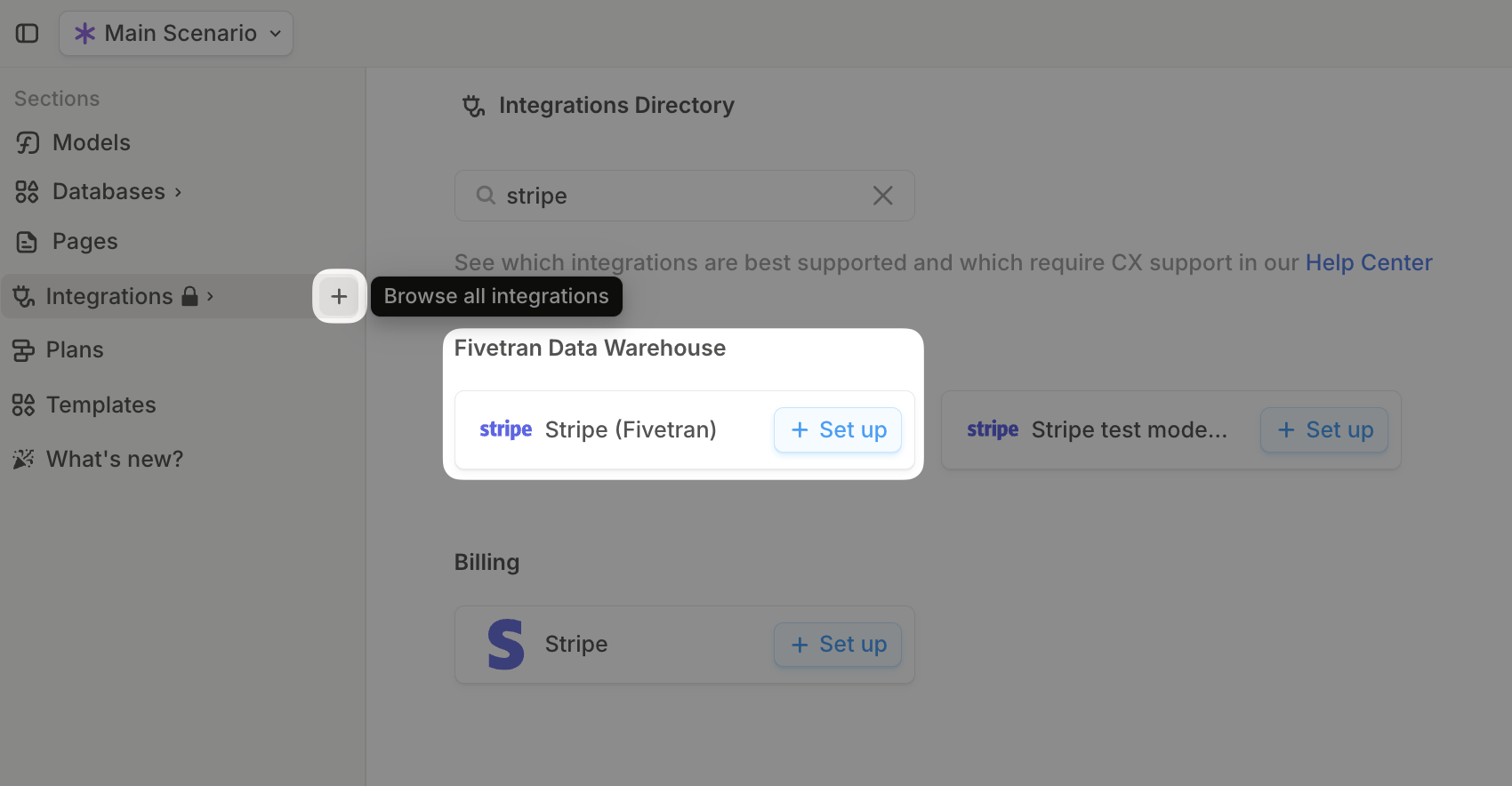
1. Click **Setup** on the **Stripe (Fivetran)** integration in the Integrations directory and follow the on-screen authentication process.
 2. When prompted to specify the **Historical sync time frame** in Fivetran, select **Sync all historical data**.
* You’ll need to log into Stripe as an admin to create an API key.
* Be sure to create a **Restricted Key**.
* Grant **read access** to all resources you intend to pull into Runway.
* Without the appropriate permissions, we may not be able to access all required data.
* [Here’s a full reference of Stripe permission scopes.](https://docs.stripe.com/stripe-apps/reference/permissions#object)
3. Enter the API key in Fivetran, click **Save & Test** to complete setup, and you’ll be redirected back to Runway.
Stripe imposes strict API rate limits. The **initial sync may take a few days** to complete the full historical data sync.
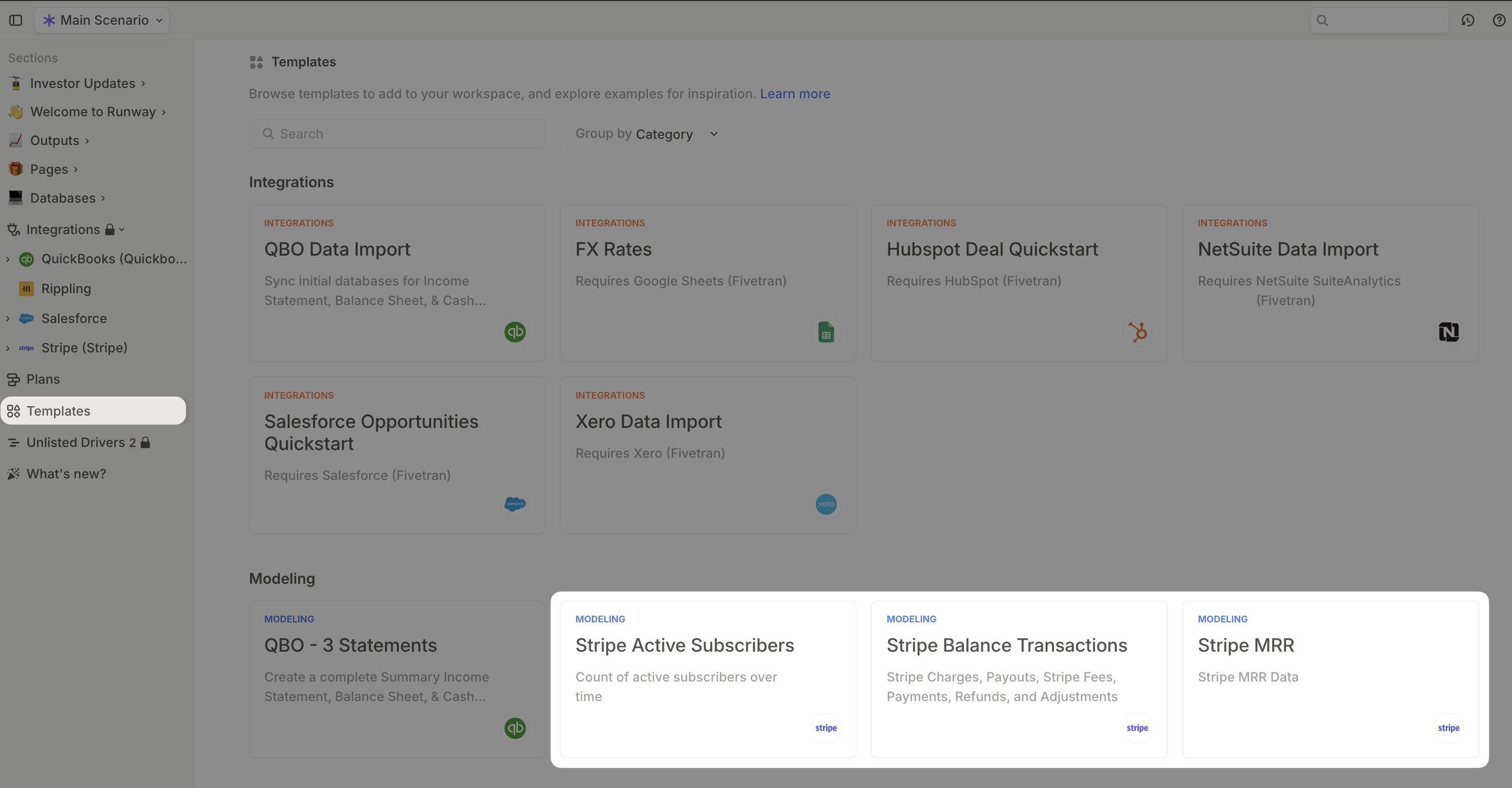
4. Once the sync is complete, use our pre-built Stripe templates:
* In the left sidebar, navigate to **Templates**.
* Search for **Stripe Balance Transactions**.
* Click **+ Add to Runway** to apply the template and get started quickly.
2. When prompted to specify the **Historical sync time frame** in Fivetran, select **Sync all historical data**.
* You’ll need to log into Stripe as an admin to create an API key.
* Be sure to create a **Restricted Key**.
* Grant **read access** to all resources you intend to pull into Runway.
* Without the appropriate permissions, we may not be able to access all required data.
* [Here’s a full reference of Stripe permission scopes.](https://docs.stripe.com/stripe-apps/reference/permissions#object)
3. Enter the API key in Fivetran, click **Save & Test** to complete setup, and you’ll be redirected back to Runway.
Stripe imposes strict API rate limits. The **initial sync may take a few days** to complete the full historical data sync.
4. Once the sync is complete, use our pre-built Stripe templates:
* In the left sidebar, navigate to **Templates**.
* Search for **Stripe Balance Transactions**.
* Click **+ Add to Runway** to apply the template and get started quickly.
 5. Alternatively, you can follow our [SQL guide](https://docs.runway.com/integrations/writing-sql) to customize the existing template or pull additional objects and properties.
## Stripe FAQs
See this [help doc](https://docs.runway.com/integrations/writing-sql).
1. Start with the Stripe MRR quickstart. It’s available from the in-app template picker during Stripe setup.
2. In the database, create a new column for New, Upgrade, Downgrade and Churn.
3. Use Runway formulas to calculate this value based on the MRR amount for each line each month. Our CX team can offer guidance here if you get stuck.
1. New MRR is: If MRR last month = 0 and MRR this month > 0, New MRR = MRR this month
2. Upgrade is: If MRR this month > MRR last month and MRR last month ≠ 0, Upgrade MRR = MRR this month - MRR last month
3. Downgrade is: If MRR this month \< MRR last month and MRR this month ≠ 0, Downgrade MRR = MRR this month - MRR last month
4. Churn is: If MRR this month = 0 and MRR last month ≠0, Churn MRR = MRR last month
We cannot pull this from Stripe at this time. You may be able to calculate it using CRM data or SQL.
Review the SQL and make any adjustments needed. Unfortunately, Stripe does not provide a way to exactly replicate the metrics from their dashboard, and our templates represent our best effort to match them. Please let our team know of any discrepancies—we're happy to check the data.
5. Alternatively, you can follow our [SQL guide](https://docs.runway.com/integrations/writing-sql) to customize the existing template or pull additional objects and properties.
## Stripe FAQs
See this [help doc](https://docs.runway.com/integrations/writing-sql).
1. Start with the Stripe MRR quickstart. It’s available from the in-app template picker during Stripe setup.
2. In the database, create a new column for New, Upgrade, Downgrade and Churn.
3. Use Runway formulas to calculate this value based on the MRR amount for each line each month. Our CX team can offer guidance here if you get stuck.
1. New MRR is: If MRR last month = 0 and MRR this month > 0, New MRR = MRR this month
2. Upgrade is: If MRR this month > MRR last month and MRR last month ≠ 0, Upgrade MRR = MRR this month - MRR last month
3. Downgrade is: If MRR this month \< MRR last month and MRR this month ≠ 0, Downgrade MRR = MRR this month - MRR last month
4. Churn is: If MRR this month = 0 and MRR last month ≠0, Churn MRR = MRR last month
We cannot pull this from Stripe at this time. You may be able to calculate it using CRM data or SQL.
Review the SQL and make any adjustments needed. Unfortunately, Stripe does not provide a way to exactly replicate the metrics from their dashboard, and our templates represent our best effort to match them. Please let our team know of any discrepancies—we're happy to check the data.