

Where to write formulas in Runway
There are four primary places where you interact with formulas in Runway. Each has its own context depending on whether you are working with standalone drivers, databases, or HRIS data.Driver table blocks
When working in a driver table block on a page or in a model, you often write or update formulas for the drivers you see there. A driver table block can contain drivers created directly in the block, pulled from other driver table blocks, or drivers originating from databases. Because drivers are portable, editing a formula in one place changes it everywhere that driver is used. You can access a driver’s formulas from the formula columns, the formula button next to the driver name, or the driver’s details pane. See Keyboard shortcuts for formula-column shortcuts.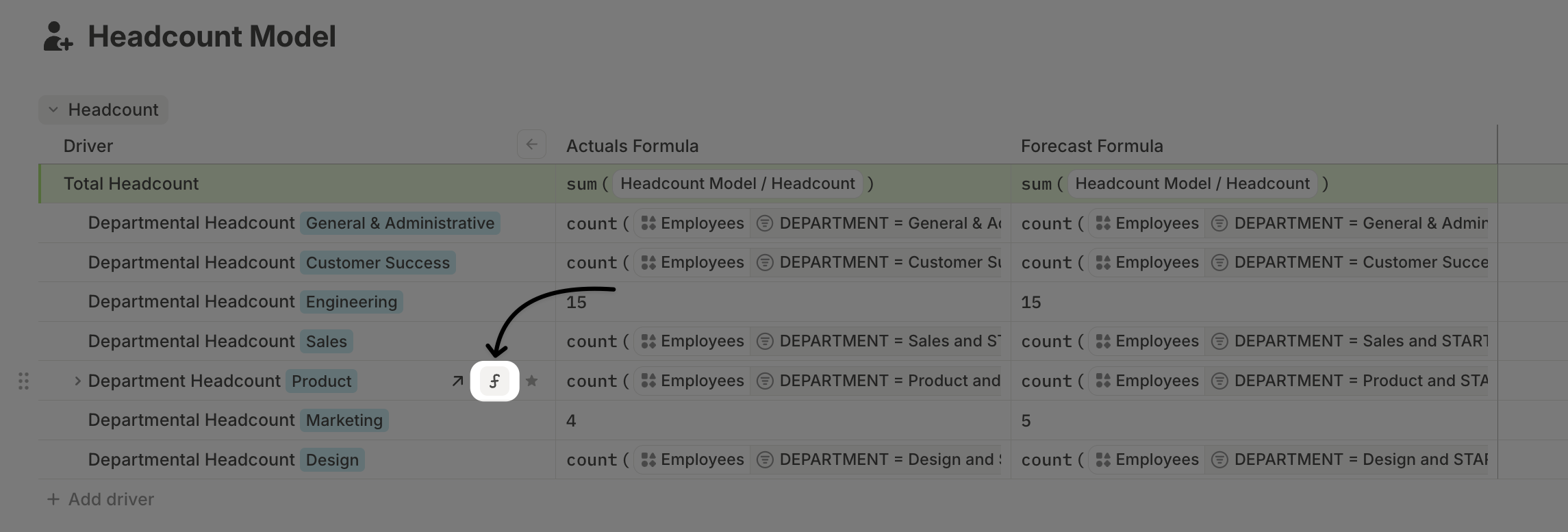
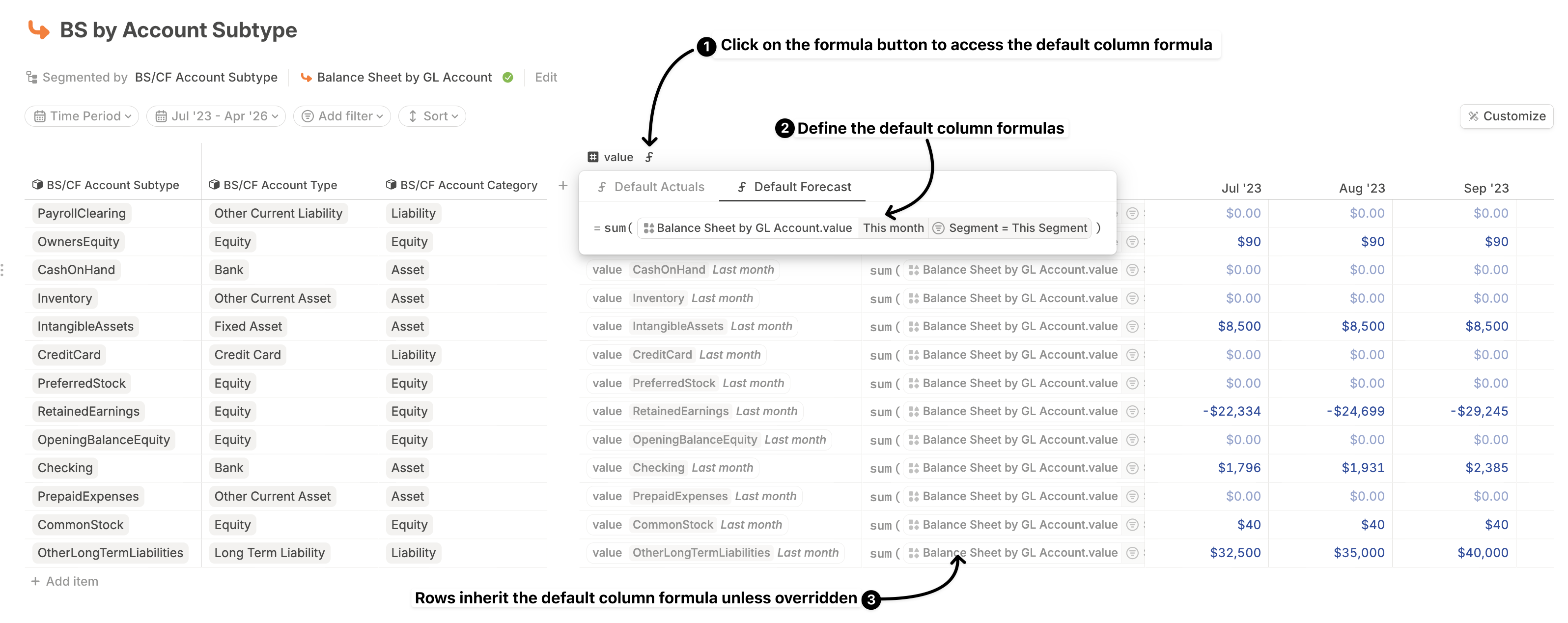
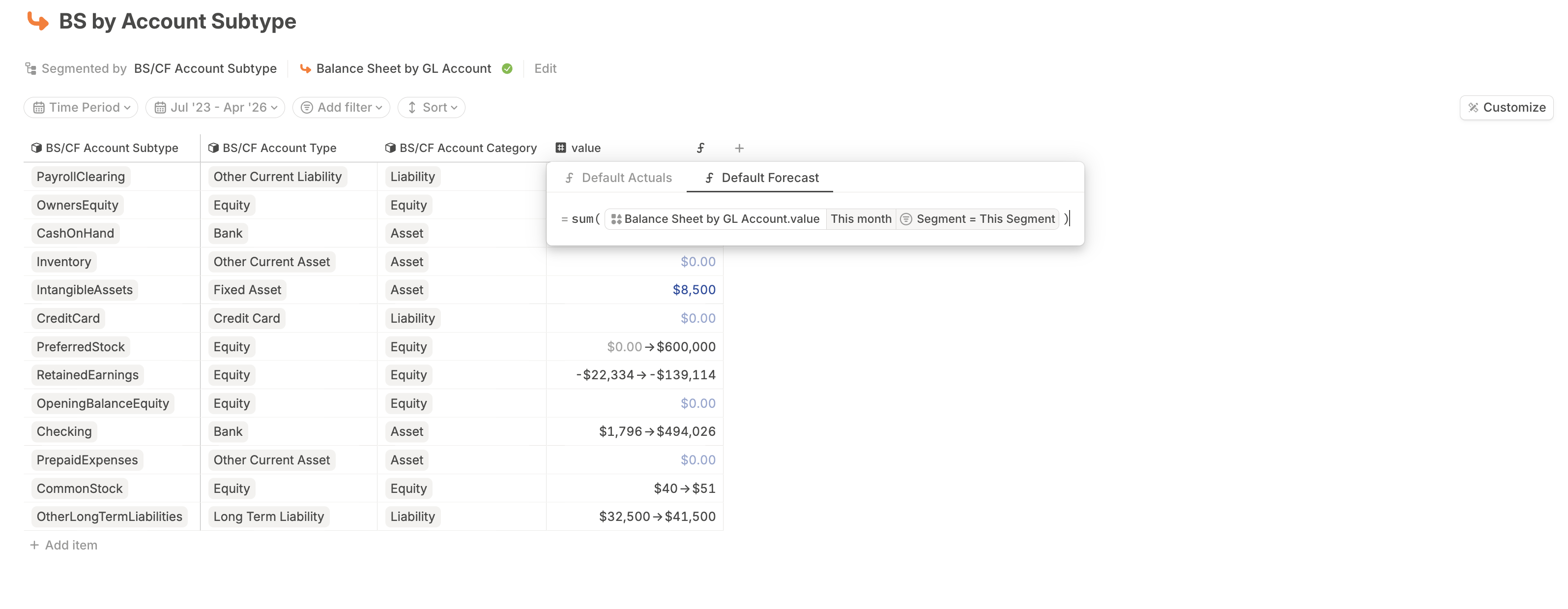
Driver default column formulas in a database
Most databases in Runway contain one or more driver columns. These columns can be:- Auto-generated through database configuration
- Manually added to extend the database with calculated drivers
Row-level driver formulas in a database
Rows in a driver column inherit the default column-level formulas by default. You can override the formula for a specific row when one segment needs custom logic. You can do this by editing the row’s formula cell when a driver column is shown as a time series, or by using the full time series view of a database to scan and edit multiple overrides in one place.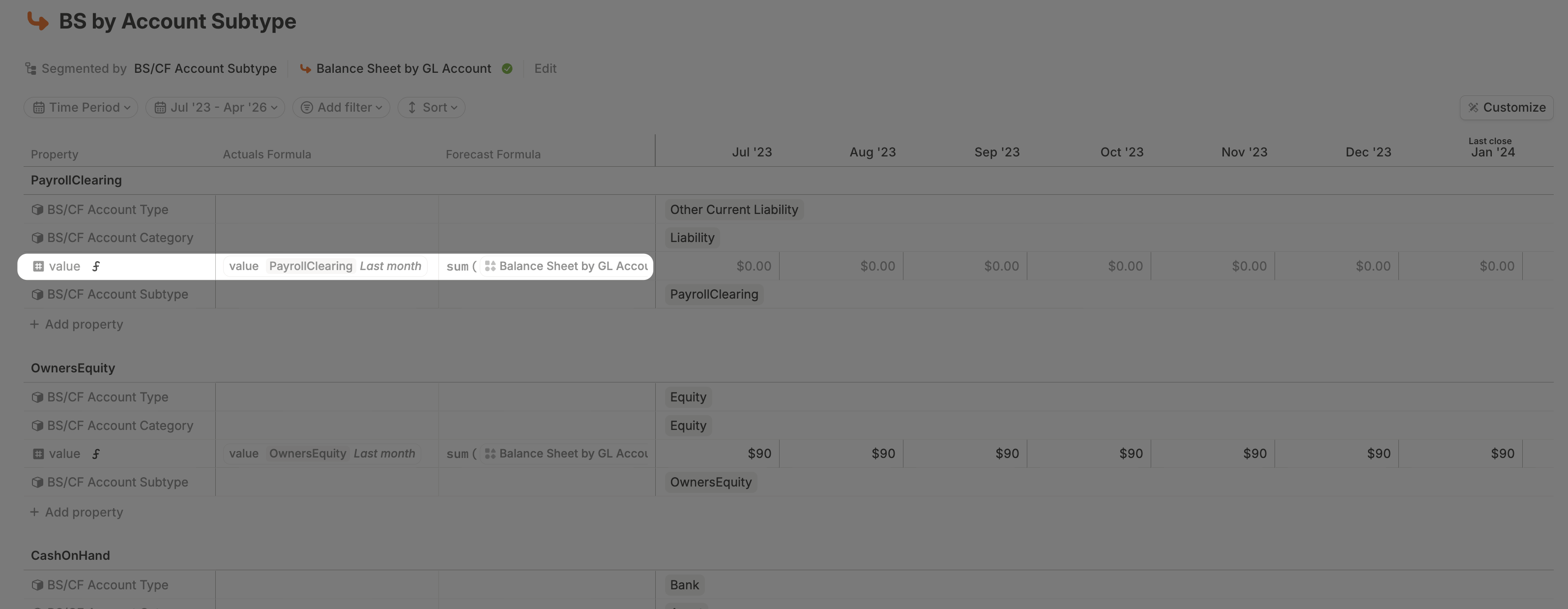
Field column formulas in an HRIS database
HRIS databases behave differently from standard Runway databases. You can define formulas at the column level, but row-level formula overrides are not currently supported. That means the logic you define for a field column applies uniformly across all employees in the database. Learn more in HRIS databases.Forecast vs. actuals formulas
Every driver in Runway supports two formulas:- Actuals formula: Used for all months up to and including your last close date.
- Forecast formula: Used for all months after last close.